A camera screen can fool you. In bright sun it looks too dark, in a dark room it looks too bright, and its brightness setting can make any shot look fine. Video makers therefore use tools that measure exposure instead of guessing: zebras, the waveform monitor and false color. They show exactly which parts of the picture are too bright, too dark or just right, even while you record. This lesson explains what each tool shows, how to read it, and a simple way to expose faces correctly.
Why video needs special exposure tools
Exposure means how bright the picture is, as explained in understanding exposure and the three exposure controls. In photography you can check one picture at a time with the histogram, explained in histogram and exposure evaluation. In video, light and subjects change while you record, so you need tools you can watch live, mapped onto the picture itself.
Video brightness is usually measured on a scale from 0 to 100, called IRE. On a normal video picture, 0 is black and 100 is the brightest white the picture can show. Anything above that is clipped: pure white with no detail.
Zebras
Zebras are moving diagonal stripes that the camera draws over parts of the picture that are brighter than a level you choose. They do not appear in the recorded video; they are only a warning on the screen.
- Highlight warning: set zebras at about 95 to 100. Stripes then show areas that are about to lose all detail, such as a white wall or a bright sky. Reduce exposure until important areas lose their stripes.
- Skin check: some cameras offer a second zebra set to a level for faces. You choose a level that suits the person's skin tone and lighting, and adjust exposure until stripes just appear on the brightest part of the face.
The waveform monitor
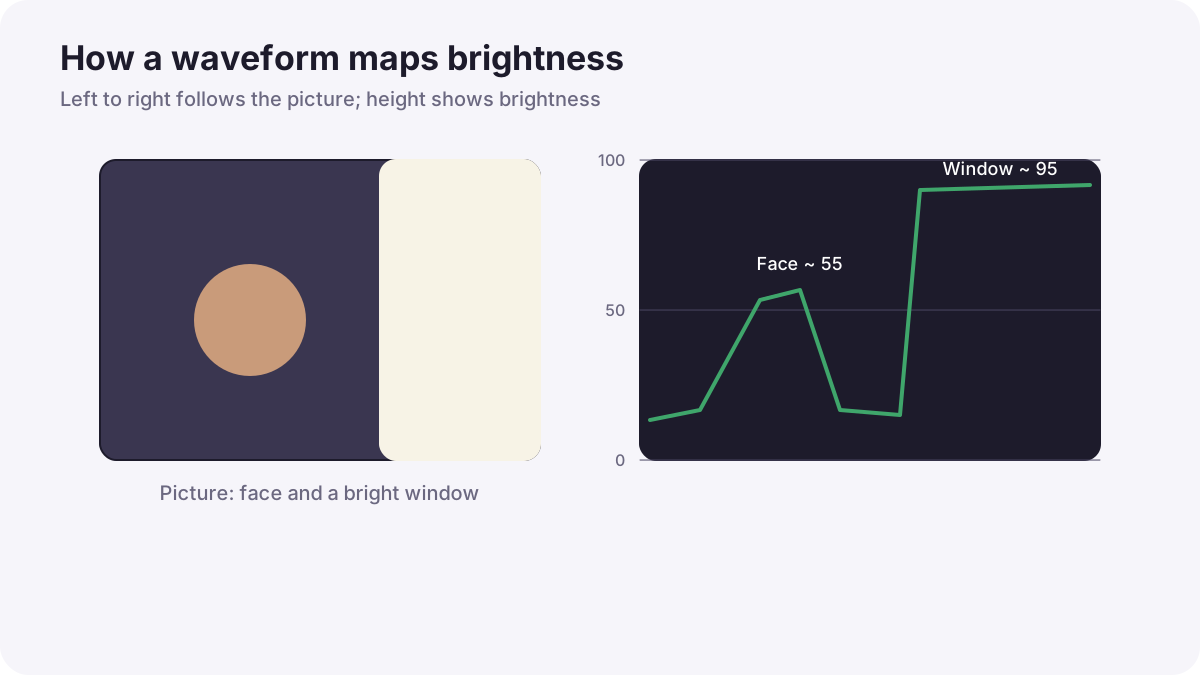
A waveform monitor is a graph of brightness across the picture. From left to right, it follows the picture from left to right. From bottom to top, it shows brightness from 0 (black) to 100 (white). A bright window on the right side of the frame appears as a high bump on the right side of the waveform.
| Part of the picture | Approximate level |
|---|---|
| Deep shadows | 0 to 10 |
| Middle gray, such as a gray card | About 40 to 50 |
| Skin tones | Roughly 45 to 70, depending on the person's skin tone and the lighting style |
| Bright whites with detail | About 80 to 95 |
| Clipped highlights | 100 and above |
Remember:These are guides for normal video, not rules. Moody scenes sit lower; bright, airy scenes sit higher. Log footage uses different levels, explained in exposing log and HDR video.
False color
False color replaces the picture on the screen with colors that show brightness levels. Dark areas might turn blue or purple, middle tones green or gray, skin-level tones pink, and clipped areas red. It shows the whole frame's exposure at a glance.
Warning:False color charts are not the same on every camera or monitor. Always check the color key for your own device before relying on it.
Which tool to use
| Tool | Best for | Limit |
|---|---|---|
| Histogram | A quick overall check | Does not show where in the frame a problem is |
| Zebras | Spotting clipped highlights and checking faces while recording | Only shows one or two levels |
| Waveform | Precise brightness of every part of the frame | Takes practice to read |
| False color | A fast map of the whole frame | Colors differ between devices; hides the real image |
Tip:Many professionals use zebras while recording and the waveform or false color while setting up a shot.
A simple method for exposing a person
- Set highlight zebras to about 95 to 100.
- Light and frame your subject.
- Adjust exposure until the face looks natural and sits in a sensible range on the waveform.
- Check the brightest important areas: if zebras appear on the face or a white shirt, reduce exposure or add light to the darker areas instead.
- Decide what can clip: a small window or a light source can be pure white; a face should not.
- Keep the exposure locked while recording.
Common mistakes
- Trusting the screen brightness: the same clip looks different on every screen.
- Exposing everyone to the same level: darker and lighter skin tones naturally sit at different levels.
- Forgetting zebras are set for normal video: log footage needs different levels.
- Removing all zebras from tiny light sources: the rest of the picture becomes too dark.
How professionals judge video exposure
Professional cinematographers rarely trust a screen alone. They set exposure with a waveform or false color, use zebras as a constant warning while recording, protect faces and important highlights, and keep exposure consistent between shots so the editor and colorist can match them easily.
Practical examples
An interview by a window
- Situation
- The person looks fine on screen, but highlight zebras appear on their cheek.
- What to do
- You reduce exposure slightly and add a reflector to brighten the darker side of the face.
- Why it works
- The brightest part of the face was clipping; the reflector keeps the face bright without losing detail.
- Result
- A natural face with detail in every part.
Two clips that do not match
- Situation
- Two shots of the same person look different in brightness when edited together.
- What to do
- On the next shoot, you place the face at the same level on the waveform for every shot.
- Why it works
- Measuring with a waveform keeps exposure consistent between shots.
- Result
- Clips that cut together smoothly.
Key points
- Camera screens are unreliable; video makers measure exposure with zebras, waveform and false color.
- Video brightness is measured in IRE: 0 is black and 100 is maximum white on a normal picture.
- Zebras show areas above a chosen level; set about 95 to 100 to warn of clipped highlights.
- A waveform graphs brightness across the frame; skin usually sits roughly between 45 and 70, depending on skin tone and lighting.
- False color maps brightness to colors, but every device uses its own color key.
Frequently asked questions
What are zebras in video?
What is a waveform monitor?
What IRE should skin be?
Is false color the same on all cameras?
Conclusion
Zebras, the waveform monitor and false color measure video exposure accurately, so faces and highlights look right on every screen. Use zebras while recording and the waveform or false color while setting up. Next, you will learn how to expose log and HDR video, which uses different brightness levels.
Finished reading? Track your progress through Exposure and metering.