Many cameras offer settings such as 8-bit 4:2:0, 10-bit 4:2:2 or RAW. They look like a code, but they decide something very practical: how much you can change your footage in color grading before it falls apart. Footage with more color information keeps smooth skies and natural skin when you adjust it; footage with less information shows bands and blotches. This lesson explains bit depth, chroma subsampling and RAW video in simple terms, and how to choose the right setting for your work.
Color information in video
Every pixel of every frame holds brightness and color information. Saving all of it for 24 or more frames every second would make enormous files, so cameras reduce it in two ways: by limiting the number of tones (bit depth) and by storing less color detail than brightness detail (chroma subsampling). Bit depth for photos was explained in bit depth and digital tonality.
Bit depth in video
| Bit depth | Tones per color channel | Total possible colors | Good for |
|---|---|---|---|
| 8-bit | 256 | About 16.7 million | Normal profiles with light grading |
| 10-bit | 1,024 | About 1.07 billion | Log, HDR and real color grading |
| 12-bit | 4,096 | About 68.7 billion | RAW and high-end grading |
With only 256 steps per channel, smooth areas such as a blue sky or a plain wall can show visible steps, called banding, especially after strong grading. Banding was explained in bit depth and digital tonality. Log footage is stretched a lot in grading, so it should be recorded in 10-bit whenever possible, as in exposing log and HDR video.
Chroma subsampling
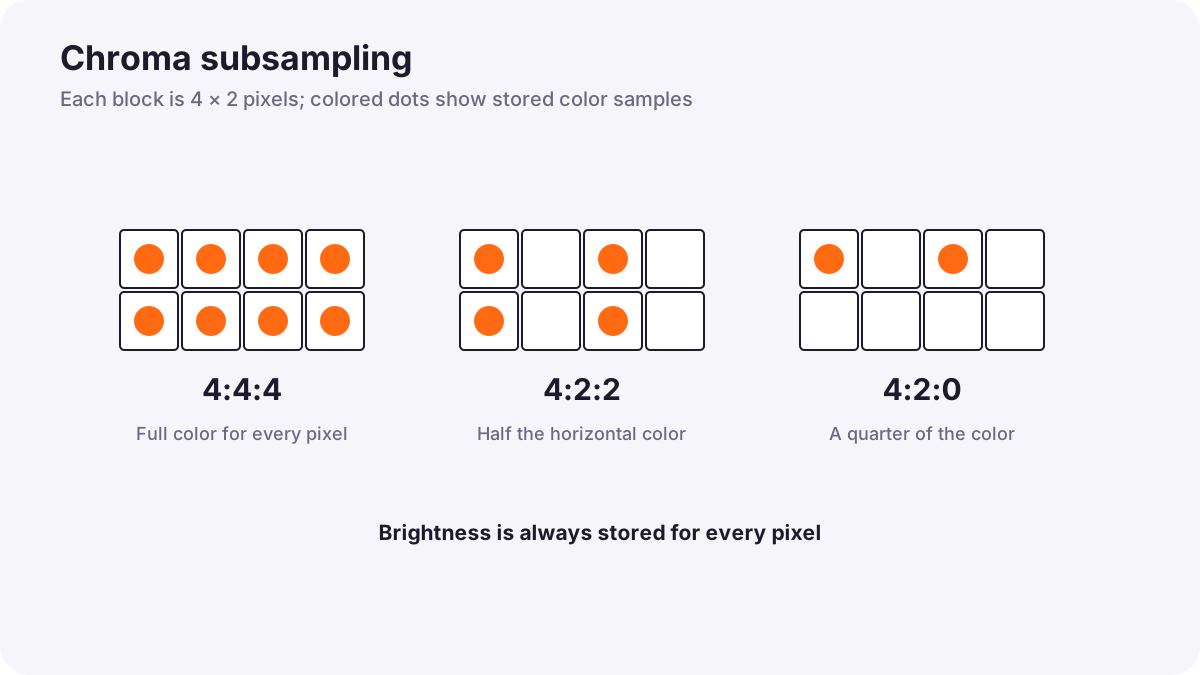
Our eyes notice brightness detail much more than color detail. Chroma subsampling uses this by saving brightness for every pixel but sharing color information between neighboring pixels. It is written as three numbers:
| Setting | Color information | Typical use |
|---|---|---|
| 4:4:4 | Full color for every pixel | High-end recording, graphics, green screen |
| 4:2:2 | Half the horizontal color detail | Professional video, good for grading and keying |
| 4:2:0 | A quarter of the color detail | Most cameras, phones and all online delivery |
Tip:In normal viewing, 4:2:0 looks fine. The difference appears when you push colors in grading or remove a green screen: 4:2:2 and 4:4:4 give cleaner edges around hair and fine detail.
RAW video
RAW video saves the sensor data with very little processing, like a RAW photo, as explained in RAW versus JPEG and other image formats. White balance, ISO-like brightness and many processing choices can be changed in editing.
- Examples: formats such as Apple ProRes RAW, Blackmagic RAW and REDCODE RAW, and RAW recording on some mirrorless and cinema cameras.
- Advantages: maximum flexibility for exposure, white balance and color, with 12-bit or more tonal information.
- Costs: large files, fast cards and storage, powerful computers and more time in post-production.
Warning:RAW does not fix bad filming. Focus, motion blur, composition and badly clipped highlights cannot be rescued.
Choosing the right setting
| Project | Suggested setting |
|---|---|
| Quick social video, no grading | 8-bit 4:2:0 in a normal profile |
| Log footage or HDR | 10-bit 4:2:0 or 4:2:2 |
| Green screen and visual effects | 10-bit 4:2:2 or better |
| Commercials, films, heavy grading | 10-bit 4:2:2 intraframe, ProRes or RAW |
Codecs and bitrates were explained in video resolution, bitrate and codecs. Delivery files for online platforms are almost always 8-bit or 10-bit 4:2:0, whatever you recorded.
Common mistakes
- Recording log in 8-bit and grading heavily: banding and blotchy colors appear.
- Choosing RAW without the storage or computer to handle it: editing becomes slow and expensive.
- Expecting 4:2:2 to improve normal viewing: the benefit appears mainly in grading and keying.
- Thinking RAW fixes everything: focus and clipped highlights still cannot be saved.
How professionals decide
Cinematographers and colorists choose bit depth, subsampling and RAW together with the post-production team, based on how much grading and visual effects the project needs. Most professional productions record at least 10-bit 4:2:2; RAW is chosen when the budget and schedule allow its larger files and longer processing.
Practical examples
A banded sunset
- Situation
- A graded log sunset shows steps across the sky.
- What to do
- You re-shoot in 10-bit log instead of 8-bit.
- Why it works
- 10-bit records four times as many tones per channel, keeping gradients smooth.
- Result
- A smooth sky even after strong grading.
A green-screen interview
- Situation
- Hair edges look rough after removing the green screen.
- What to do
- You record the next session in 10-bit 4:2:2.
- Why it works
- More color detail gives the keying software cleaner edges.
- Result
- Natural edges around hair and shoulders.
Key points
- Bit depth sets the number of tones: 8-bit has 256 per channel, 10-bit has 1,024, 12-bit has 4,096.
- Record log and HDR in 10-bit to avoid banding when grading.
- Chroma subsampling (4:4:4, 4:2:2, 4:2:0) saves less color detail than brightness detail.
- 4:2:2 and 4:4:4 help grading and green screen; 4:2:0 is fine for normal viewing and delivery.
- RAW video gives the most flexibility but needs large storage, powerful computers and time.
Frequently asked questions
Is 10-bit video better than 8-bit?
What does 4:2:2 mean?
Do I need RAW video?
Why does my video show banding?
Conclusion
Bit depth, chroma subsampling and RAW decide how far you can push your footage in grading. Use 10-bit for log and HDR, 4:2:2 for heavy grading and green screen, and RAW only when you can support its demands. You have now completed the digital imaging course for both photography and video.
Finished reading? Track your progress through Sensors and RAW.