Two video clips can both say 4K and still look very different. One may be sharp and clean, the other blocky and smeared in fast movement. The difference often comes from the bitrate and the codec: how much data the camera saves every second, and the method it uses to squeeze that data into a file. This lesson explains video resolution, bitrate, the main codecs and file containers, and how to choose recording settings that give good quality without filling your storage.
What makes up a video file
A video file holds a series of frames plus sound, packed in a particular way. Four things decide its quality and size: the resolution of each frame, the frame rate, the bitrate and the codec. Frame rates were explained in frame rates and slow motion, and image compression for photos in image compression and file quality.
Video resolution
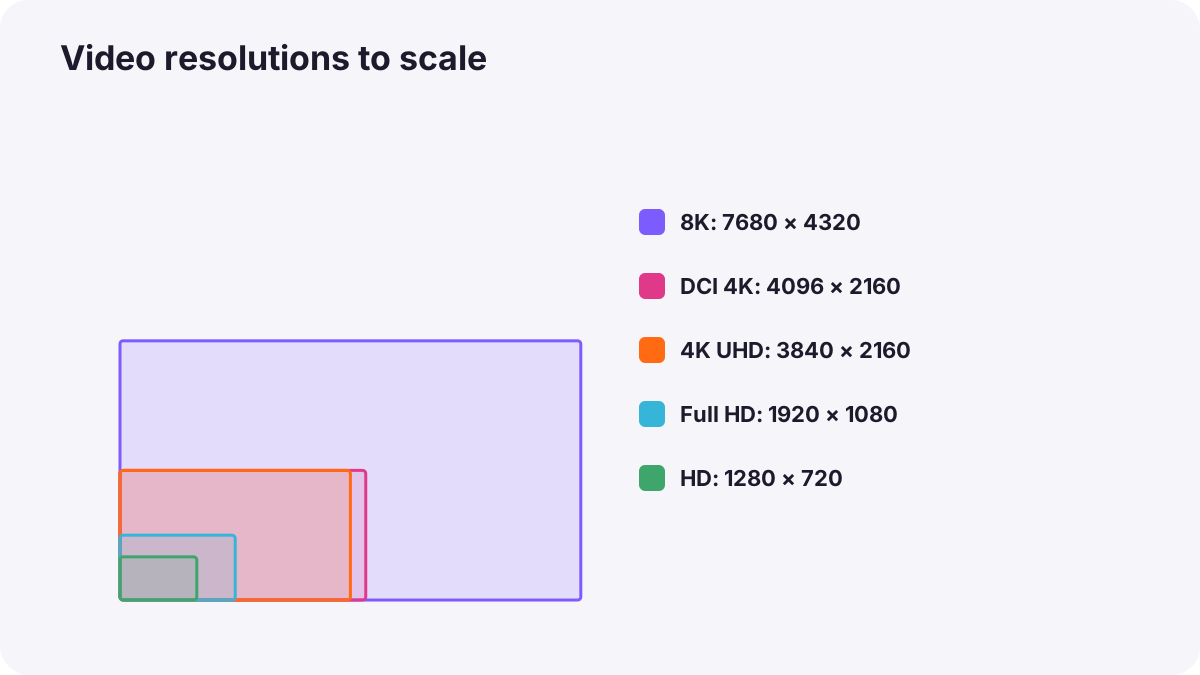
| Name | Pixels | Notes |
|---|---|---|
| HD (720p) | 1280 × 720 | Older and low-bandwidth use |
| Full HD (1080p) | 1920 × 1080 | Still common online and on television |
| 4K UHD | 3840 × 2160 | Standard for 4K televisions and online video |
| DCI 4K | 4096 × 2160 | Slightly wider, used in cinema |
| 6K and 8K | About 6000 and 7680 pixels wide | High-end production, cropping and reframing |
Tip:Recording in 4K and delivering in 1080p lets you crop and reframe in editing, and often gives a slightly sharper 1080p result. Image resolution for photos was explained in image size, resolution and aspect ratio.
Bitrate
Bitrate is the amount of data a video uses each second, usually written in megabits per second (Mbps). A higher bitrate keeps more detail, especially in fast movement, grass, water and fine textures. A low bitrate forces the codec to throw away detail, which causes blocky patches and smearing.
Bitrate also decides file size. A 100 Mbps clip uses about 12.5 megabytes every second, or about 45 gigabytes per hour. Converting between megabits and megabytes was explained in video mode and basic video settings.
Codecs
A codec (short for coder–decoder) is the method used to compress video when it is recorded and decompress it when it is played or edited.
| Codec | Strength | Limit | Typical use |
|---|---|---|---|
| H.264 (AVC) | Small files, plays almost everywhere | Less efficient than newer codecs | Online delivery, many cameras and phones |
| H.265 (HEVC) | Similar quality at roughly half the bitrate of H.264 | Harder for older computers to edit | Phones, modern cameras, 4K and HDR |
| Apple ProRes | High quality, very easy to edit | Very large files | Professional recording and editing |
| Avid DNxHD and DNxHR | High quality, easy to edit | Large files | Professional editing |
| AV1 | Very efficient for streaming | Mostly used for delivery, not recording | Online platforms |
Long-GOP and intraframe
- Long-GOP: the codec saves some complete frames and, for the frames in between, only the changes. Files are small, but editing needs more computer power, and fast motion can lose detail.
- Intraframe (All-Intra): every frame is saved completely on its own. Files are larger, but quality holds up in fast motion and editing is smoother.
Tip:Many cameras offer both. Choose intraframe or a professional codec for important work and heavy grading; choose long-GOP when storage and recording time matter most.
Containers: MP4 and MOV
The file extension, such as .mp4 or .mov, shows the container: the box that holds the video, sound and information like timecode. The container is not the same as the codec. An MP4 file usually holds H.264 or H.265; a MOV file may hold H.264, H.265 or ProRes. Delivery formats are explained in proxies and video delivery formats.
Choosing recording settings
- Decide the delivery: online, television, cinema or client archive.
- Choose resolution: 4K for flexibility, 1080p for long events or limited storage.
- Choose the highest bitrate your card and storage can handle for important shots.
- Choose the codec your computer can edit smoothly, or plan to use proxies.
- Check the memory card speed against the bitrate.
- Estimate storage for the whole shoot before you start.
Common mistakes
- Judging quality by resolution alone: a low-bitrate 4K file can look worse than a high-bitrate 1080p file.
- Recording H.265 on an old computer: editing becomes slow and jerky.
- Confusing containers and codecs: an MP4 file can hold different codecs.
- Not planning storage: cards fill up during an important event.
How professionals choose formats
Professional productions choose recording formats with the editor and colorist before filming: high-bitrate intraframe or ProRes for main cameras, consistent settings on every camera, and a storage plan with backups. Online creators often record efficient H.265 in camera and use proxies for smooth editing.
Practical examples
Blocky water footage
- Situation
- Your 4K waterfall clip looks blocky and smeared.
- What to do
- You switch from a low-bitrate long-GOP mode to a higher-bitrate intraframe mode.
- Why it works
- Fast, detailed motion needs more data per second.
- Result
- Clean, detailed water movement.
A full-day event
- Situation
- You will record eight hours of a conference.
- What to do
- You choose 1080p H.265 at a moderate bitrate and calculate the storage needed.
- Why it works
- Efficient settings fit a long day onto your cards without losing important quality.
- Result
- The whole event recorded with no card emergencies.
Key points
- Video quality depends on resolution, frame rate, bitrate and codec together.
- Bitrate is data per second (Mbps); higher bitrate keeps more detail but makes bigger files.
- H.264 and H.265 make small files; ProRes and DNx are larger but easier to edit and grade.
- Long-GOP saves changes between frames; intraframe saves every frame completely.
- MP4 and MOV are containers that can hold different codecs.
Frequently asked questions
What is bitrate in video?
Is H.265 better than H.264?
What is the difference between 4K UHD and DCI 4K?
Is MP4 a codec?
Conclusion
Resolution sets how many pixels each frame has, bitrate sets how much detail survives, and the codec decides how the data is compressed and how easy it is to edit. Next, you will learn about bit depth, chroma subsampling and RAW video, which decide how much you can grade.
Finished reading? Track your progress through Sensors and RAW.