Pressing the red record button is easy. Getting clean, steady, well-exposed video takes a few settings that work differently from photography. In video the camera records continuously, so settings that change by themselves in the middle of a clip, such as automatic white balance or exposure, can spoil the shot. This lesson walks you through the basic video settings found on almost every camera and phone, explains what each one does, and gives a simple starting setup you can use today.
What is video mode?
Video mode is the part of your camera that records moving images instead of single photos. On many cameras you switch to it with a dial, a switch or a menu, and some cameras keep separate settings for photo and video so you can change between them quickly. On phones, you simply swipe to the video option. Video mode has its own menu for resolution, frame rate, sound and file format.
Why video is different from photography was explained in photography and videography.
The basic video settings
| Setting | What it controls | A good starting choice |
|---|---|---|
| Resolution | How many pixels each frame has | 1080p (Full HD) or 4K (Ultra HD) |
| Frame rate | How many frames are recorded each second | 24, 25 or 30 fps for normal motion |
| Shutter speed | How long each frame is exposed; affects motion blur | About double the frame rate, such as 1/50 s at 24 or 25 fps |
| Aperture | Brightness and depth of field | Choose for the look you want, as in photography |
| ISO | Brightness boost; more ISO adds noise | As low as the light allows |
| White balance | Color of the light | A fixed setting, not automatic |
| Focus | What stays sharp | Continuous autofocus with face or eye detection, or manual focus |
| Audio | Sound recording level | Manual level, checked with headphones if possible |
| Stabilization | Reduces shake | On for handheld; often off on a tripod |
Resolution and frame rate
- 1080p (Full HD): 1920 × 1080 pixels. Smaller files, easy to edit, fine for most phones and social media.
- 4K (Ultra HD): 3840 × 2160 pixels. More detail and room to crop in editing, but larger files and more work for your computer.
- Frame rate: 24 fps gives the classic film look; 25 or 30 fps is common for online video and television; 50 or 60 fps makes fast action look smoother and can be slowed down later.
Remember:Some regions traditionally use 25 and 50 fps and others 30 and 60 fps, linked to the local electricity frequency. Lights can flicker on video if your frame rate does not suit the local power supply. If you see flicker, try the other family of frame rates.
Resolution and file quality are explained further in video resolution, bitrate and codecs.
Exposure in video
Video uses the same exposure controls as photography, explained in understanding exposure and the three exposure controls. The big difference is shutter speed. In video, the shutter speed is usually kept near double the frame rate, because this gives each frame a natural amount of motion blur. This is called the 180-degree rule, explained in exposure for video.
Because the shutter speed is fixed, you control brightness with the aperture, the ISO, or a neutral-density (ND) filter, which works like sunglasses for your lens. ND filters are explained in neutral density filters.
Tip:Automatic exposure can change brightness in the middle of a shot, for example when a person in a white shirt walks past. For steady results, use manual exposure, or lock the exposure once it looks right.
White balance, focus and sound
- White balance: set a preset such as Daylight, or measure it with a gray card, so colors do not shift during a clip, as in white balance settings.
- Focus: modern face and eye autofocus works well for video; for careful shots, use manual focus. Focus for video is explained in focus for video.
- Sound: the built-in microphone is fine for practice, but it records camera noise and sounds far away. Set the audio level so voices are clear but never too loud. Sound is explained in why sound matters in video.
Memory cards and recording limits
Video creates a large, constant stream of data, so the memory card must be fast enough to keep up. The SD Association's Video Speed Class tells you the minimum speed a card can write without slowing down:
| Rating | Minimum sustained write speed | Typical use |
|---|---|---|
| V10 | 10 MB per second | Full HD video |
| V30 | 30 MB per second | Most 4K video |
| V60 | 60 MB per second | High-quality 4K |
| V90 | 90 MB per second | 8K and very high-quality recording |
Camera video quality is often written in megabits per second (Mbps), while cards are rated in megabytes per second (MB/s). One byte is 8 bits, so divide Mbps by 8. For example, video recorded at 200 Mbps needs about 25 MB per second, which a V30 card can handle.
Warning:Some cameras stop recording after a certain time or when they get too hot. Check your camera's limits before an important event, and carry spare batteries, because video uses power quickly.
A simple starting setup
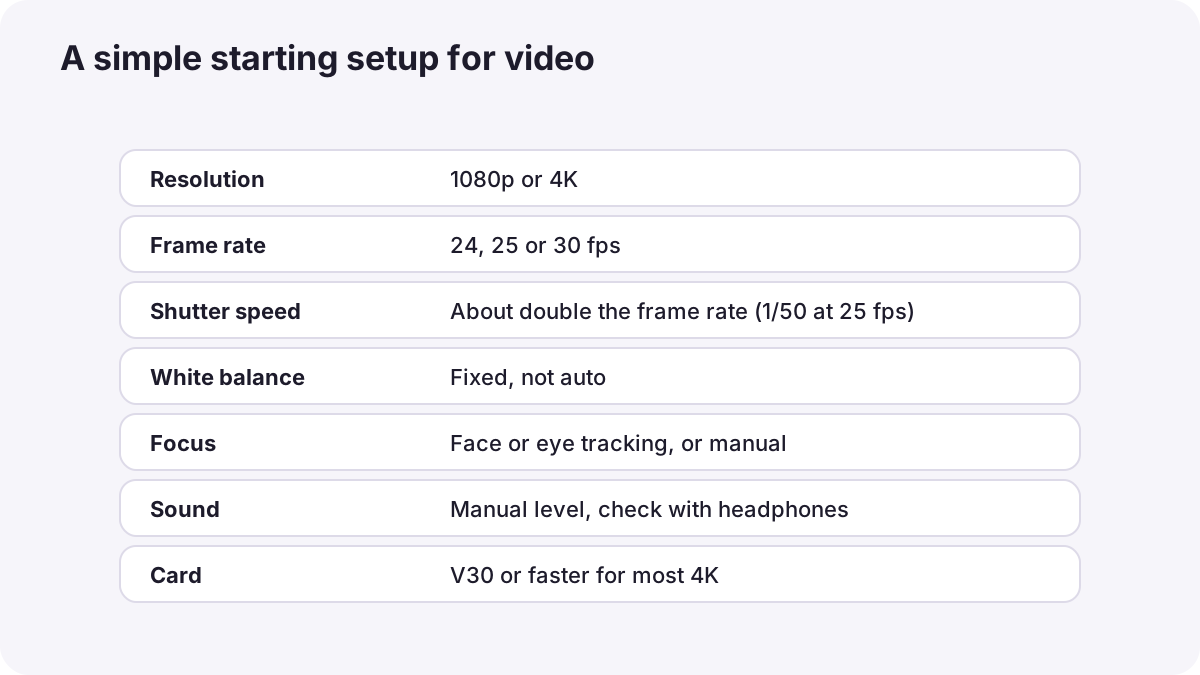
- Switch to video mode and choose 1080p or 4K.
- Choose a frame rate: 24 or 25 fps for a film look, or 30 fps for general online video.
- Set the shutter speed to about double the frame rate, such as 1/50 s at 24 or 25 fps, or 1/60 s at 30 fps.
- Choose the aperture for the depth of field you want, then set ISO for correct brightness.
- Set white balance to a fixed preset that matches the light.
- Choose focus: face or eye tracking autofocus, or manual focus.
- Check sound levels and turn on stabilization if you are handheld.
- Record a short test clip and play it back before the real recording.
Common mistakes
- Very fast shutter speeds: make movement look jerky, like a flip book.
- Automatic white balance: colors change in the middle of a clip.
- Slow memory cards: recording stops or files are lost.
- Never checking sound: clips are unusable because the voice is too quiet or distorted.
- Mixing frame rates by accident: clips do not match when edited together.
How professionals set up for video
Professional videographers decide resolution and frame rate before a project starts and keep them the same for every camera, so all clips match in editing. They use manual or locked exposure, fixed white balance, fast and tested memory cards, spare batteries and separate microphones. They always record a test clip and check it before the important moment.
Practical examples
A family video at home
- Situation
- You want to record your family cooking dinner.
- What to do
- You choose 1080p at 25 fps, set the shutter to 1/50 s, fix white balance for the kitchen lights and use face-detection autofocus.
- Why it works
- Fixed settings keep brightness and color steady while people move around.
- Result
- Clean, natural-looking clips that are easy to edit.
Recording that keeps stopping
- Situation
- Your camera stops recording 4K after a few seconds.
- What to do
- You replace your old card with a V30 card.
- Why it works
- The old card was too slow to save the constant stream of 4K data.
- Result
- The camera records 4K without stopping.
Key points
- Video mode has its own settings for resolution, frame rate, sound and file format.
- Choose 1080p or 4K, and 24, 25 or 30 fps for normal motion.
- Keep the shutter speed near double the frame rate; control brightness with aperture, ISO or an ND filter.
- Fix white balance and exposure so they do not change during a clip.
- Use a fast memory card (V30 or faster for most 4K), spare batteries, and always record a test clip.
Frequently asked questions
What are the best video settings for beginners?
Should I shoot video in 4K or 1080p?
Why does my camera stop recording video?
What memory card do I need for 4K video?
Conclusion
Good video starts with the right settings: resolution, frame rate, shutter speed, fixed white balance, suitable focus, checked sound and a fast memory card. Next, you will put these settings to use with simple practice exercises.
Finished reading? Track your progress through Photography foundations.