High-quality camera files are often too heavy for a normal laptop to edit smoothly: playback stutters, the computer gets hot and every cut feels slow. Proxies solve this by letting you edit with small, light copies and switch back to the full-quality originals for the final export. At the end of a project, you also need to deliver the right files: a high-quality master and smaller versions for websites, social media and clients. This lesson explains the proxy workflow and how to plan your video deliverables.
What proxies are
A proxy is a smaller, lighter copy of a video clip, made only for editing. It has the same length, timecode and file name pattern as the original, but a lower resolution and an easy-to-edit codec. You edit with the proxies, and when you export, the editing software uses the original high-quality files instead.
Codecs and why some are hard to edit were explained in video resolution, bitrate and codecs. Organizing footage was explained in offloading and backing up video footage.
The proxy workflow
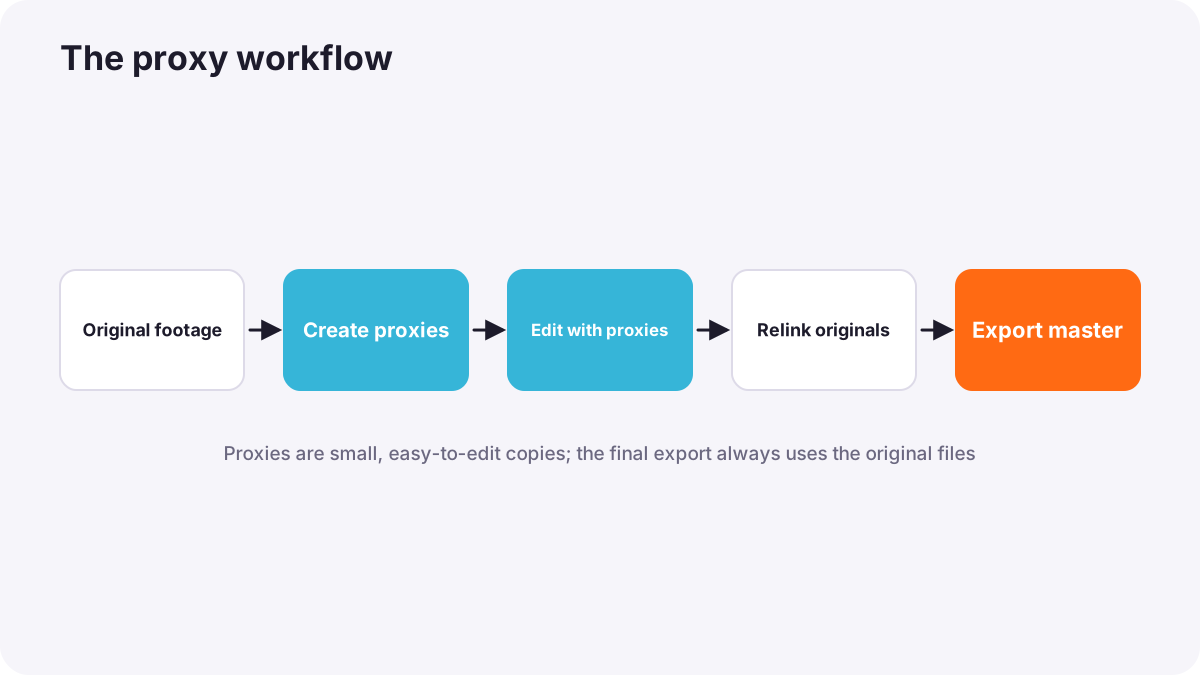
- Import the original footage into your editing project.
- Create proxies in the editing software, or record them in camera if it can save proxy files at the same time.
- Edit with proxies switched on, so playback is smooth.
- Switch proxies off to check color, focus and fine detail before finishing.
- Export from the originals: the software automatically uses the full-quality files.
| Setting | Common choice |
|---|---|
| Resolution | About a quarter or half of the original, such as 1080p or 720p for 4K footage |
| Codec | An editing-friendly codec such as ProRes Proxy or DNxHR LB, or a light H.264 |
| Storage | On a fast drive, kept with the project |
Warning:Keep proxies and originals linked. If you move or rename original files, the software may lose the connection. Relinking means pointing the software to the files' new location.
Masters and deliverables
At the end of a project you usually create two kinds of files. The master is the highest-quality version of the finished video, kept for the archive and for making new versions later. Deliverables are the files made from the master for each place the video will be shown.
| Master | Deliverables | |
|---|---|---|
| Purpose | Archive and future versions | Viewing on specific platforms |
| Typical format | ProRes or DNxHR in a MOV container, at full resolution | H.264 or H.265 in an MP4 container |
| File size | Very large | Small enough to upload and stream |
| Who gets it | Kept by you; sometimes given to the client | Client, websites, social platforms |
Common deliverables
- Online video platforms: usually an MP4 with H.264 video, AAC audio at 48 kHz, in the project frame rate. Platforms publish their own recommended settings; for example, YouTube recommends around 35 to 45 Mbps for 4K at standard frame rates. Exact export settings are explained in exporting and delivery settings.
- Social media versions: vertical or square versions, often shorter, as in short-form vertical video for social media.
- Client review copy: a small file, sometimes with a watermark or timecode, for comments before final approval.
- Captions file: a separate subtitle file for accessibility and search, as in publishing video online.
- Stills and thumbnails: selected frames for posters or covers.
Naming and archiving deliverables
Name files so anyone can understand them: project, version, format and date, for example ClientName_BrandFilm_v03_16x9_1080p_2026-10-12.mp4. Keep the master, the project files, the original footage and licensed music together in the archive, as in archiving and long-term preservation. Client delivery packages were explained in client delivery and file packaging.
Common mistakes
- Exporting from proxies by accident: the final video is low resolution.
- Renaming original files after creating proxies: the project can no longer find them.
- Giving the client only a heavily compressed file: they cannot make new versions later.
- Deleting the master after upload: re-editing or re-exporting becomes impossible.
- Unclear file names: the wrong version is published.
How professionals deliver video
Professional editors plan proxies at the start of a project, keep a strict folder structure so files stay linked, and agree on the deliverables list with the client before editing begins. They export a high-quality master, create each deliverable from it, check every file on the intended device or platform, and archive the master with the project.
Practical examples
A slow laptop
- Situation
- Your laptop stutters when editing 4K H.265 footage.
- What to do
- You create 1080p ProRes Proxy files and edit with proxies on.
- Why it works
- Light, editing-friendly files play smoothly; export still uses the originals.
- Result
- Fast editing and a full-quality 4K export.
A brand film
- Situation
- A company needs its film for its website, social media and future events.
- What to do
- You deliver a ProRes master, a 16:9 MP4 for the website, a 9:16 short version and a captions file.
- Why it works
- Each platform needs a suitable file, and the master allows future versions.
- Result
- The client can use the film everywhere and request changes later.
Key points
- Proxies are smaller, editing-friendly copies of clips; export always uses the originals.
- Create proxies at a lower resolution in codecs like ProRes Proxy or DNxHR LB.
- Keep originals and proxies linked; renaming or moving originals breaks the link.
- The master is the highest-quality archive file; deliverables are made from it for each platform.
- Name files clearly and archive the master, project, footage and music together.
Frequently asked questions
What are proxies in video editing?
Do proxies reduce final quality?
What is a master file?
What format should I deliver to clients?
Conclusion
Proxies make editing smooth on any computer while keeping full quality for export. At the end of a project, export a high-quality master and create clearly named deliverables for each platform. You have now completed the workflow course for both photography and video.
Finished reading? Track your progress through Workflow and delivery.