Exporting, also called rendering, turns your edit into a finished video file. The settings you choose decide how sharp it looks, how smoothly it plays, how big the file is, and whether it uploads correctly to a platform or plays properly for a client. Many beautiful edits are spoiled at this last step by the wrong frame rate, a very low bitrate or audio that is too loud. This lesson explains the main export settings, a reliable setup for online delivery, how to export masters, and how to check the finished file.
What exporting is
Exporting processes every frame and sound of the timeline into a new file with the settings you choose. Codecs, containers, bitrate and resolution were explained in video resolution, bitrate and codecs, and masters and deliverables in proxies and video delivery formats. This lesson puts those ideas together at the moment of export.
The main export settings
| Setting | What to choose | Why |
|---|---|---|
| Resolution | Same as the timeline, such as 1920 × 1080 or 3840 × 2160 | Avoids unwanted scaling |
| Frame rate | Same as the timeline | Prevents stutter, as in frame rates and slow motion |
| Codec and container | H.264 or H.265 in MP4 for online; ProRes or DNxHR in MOV for masters | Balance of quality, size and compatibility |
| Bitrate | High enough for the resolution and motion | Too low causes blocky, smeared detail |
| Audio | AAC at 48 kHz for online files; uncompressed PCM for masters | Standard for video platforms and editing |
| Color | Usually Rec.709 for ordinary (SDR) video | Correct contrast and color, as in color for video |
Bitrate modes
- Constant bitrate (CBR): the same amount of data every second; predictable size but less efficient.
- Variable bitrate (VBR): more data for complex, fast-moving shots and less for simple ones; better quality for the same file size.
- Two-pass VBR: the encoder analyzes the video first, then encodes; slower but often better quality.
Remember:As an example of platform guidance, YouTube recommends roughly 8 Mbps for 1080p and 35 to 45 Mbps for 4K at standard frame rates in SDR, with higher values for higher frame rates. Platforms re-compress uploads, so giving them a good-quality file helps.
Audio and loudness
- Sample rate: 48 kHz, matching your project, as in recording settings.
- Loudness: mix to the target of the platform or broadcaster, such as about −14 LUFS for many online platforms, as in basic audio editing and mixing.
- Peaks: keep true peaks below about −1 dBTP to avoid distortion after re-encoding.
- Channels: stereo for most online video; follow broadcast specifications for other formats.
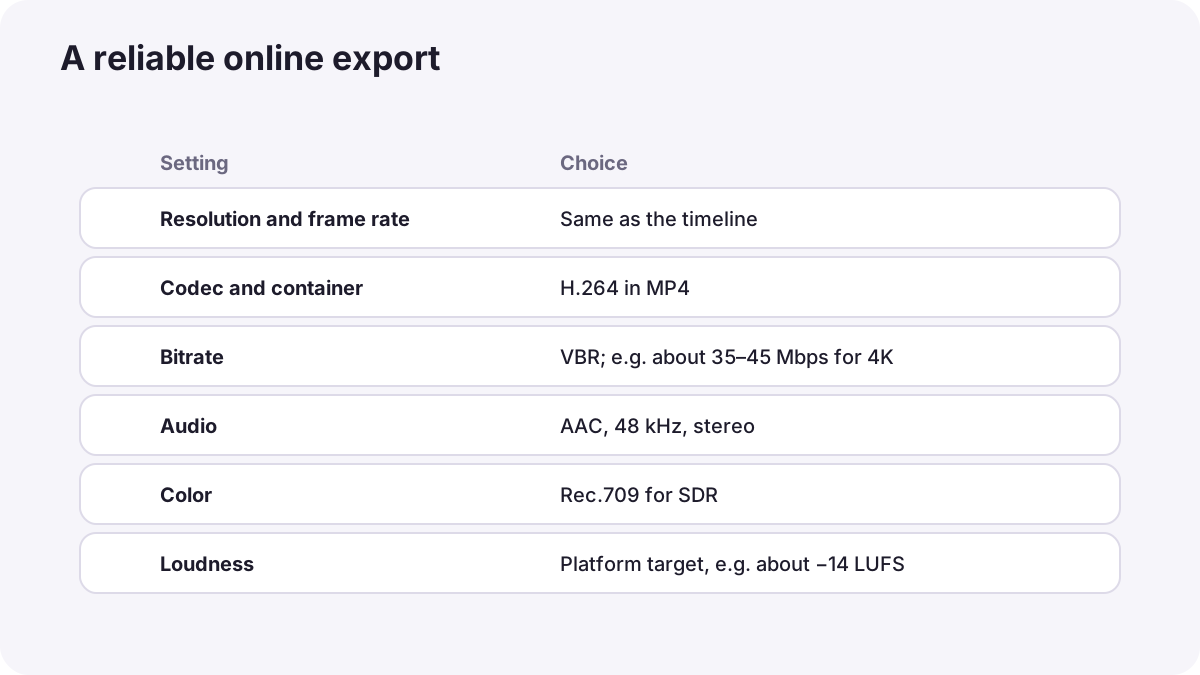
A reliable online export
- Check that the timeline is final and picture locked, as in what video editing is and why it matters.
- Export the master first in a high-quality codec, and archive it.
- Export an MP4 with H.264 at the timeline's resolution and frame rate.
- Choose VBR with a bitrate suitable for the resolution.
- Set audio to AAC, 48 kHz, stereo, at the right loudness.
- Name the file clearly with project, version, format and date.
- Play the exported file from start to end before sending or uploading.
Tip:Save your best settings as an export preset so every project starts correctly, like photo export presets in export settings for web and social media.
Checking the exported file
- Picture: sharpness, no blocky areas, no black flashes, correct colors and brightness.
- Sound: in sync, no clicks or distortion, correct loudness.
- Text: spelling, safe areas and timing.
- Compatibility: test on a phone, a computer and, if possible, the target platform.
Some media players show colors and contrast slightly differently from your editing software. If a file looks different, check it in several players and on the target platform before changing the grade.
Common mistakes
- Exporting at a different frame rate from the timeline: jerky motion.
- Very low bitrate: blocky, smeared detail, especially in motion.
- Wrong audio settings or loudness: quiet, distorted or out-of-sync sound.
- Exporting from proxies by mistake: low-resolution final files.
- Not watching the export: errors reach the client or audience.
- Never exporting a master: new versions require re-exporting from the project, if it still exists.
How editors deliver files
Professional editors export a high-quality master, create deliverables from it with saved presets that follow each platform's or broadcaster's specification, check loudness and color, watch every file fully, and name and archive everything clearly. For broadcast and cinema, they follow detailed delivery documents and quality-control checks.
Practical examples
A blocky 4K upload
- Situation
- Your 4K travel video looks blocky in fast motion after uploading.
- What to do
- You re-export with variable bitrate around the platform's recommendation for 4K instead of a very low setting.
- Why it works
- More data keeps detail in complex motion before the platform re-compresses.
- Result
- A cleaner online video.
A stuttering export
- Situation
- An exported 25 fps edit stutters on playback.
- What to do
- You find the export was set to 30 fps and re-export at 25 fps.
- Why it works
- The export frame rate must match the timeline.
- Result
- Smooth playback.
Key points
- Exporting renders the timeline into a finished file with chosen settings.
- Match resolution and frame rate to the timeline.
- Use H.264 or H.265 in MP4 for online delivery and ProRes or DNxHR for masters.
- Choose VBR with a suitable bitrate, AAC 48 kHz audio at the target loudness, and Rec.709 for SDR.
- Export a master, save presets, name files clearly and always watch the export.
Frequently asked questions
What are the best export settings for online video?
What bitrate should I export at?
Should I use VBR or CBR?
Why does my exported video look different?
Conclusion
Good exports match the timeline, use the right codec and bitrate, deliver clean audio at the right loudness and are always watched before delivery. Next, you will learn how to review and finish an edit.
Finished reading? Track your progress through Video editing.