More and more phones, televisions and computers can show HDR (high dynamic range) video, with brighter highlights and richer colors than ordinary screens. Grading for HDR can make sunlight sparkle and night scenes glow, but it also brings new challenges: you need an HDR display to judge it, faces must not become blindingly bright, and most viewers still watch in SDR. This lesson explains display brightness in nits, the main HDR systems, how to grade HDR, how to create an SDR version with a trim pass, and how to deliver both.
HDR and SDR displays
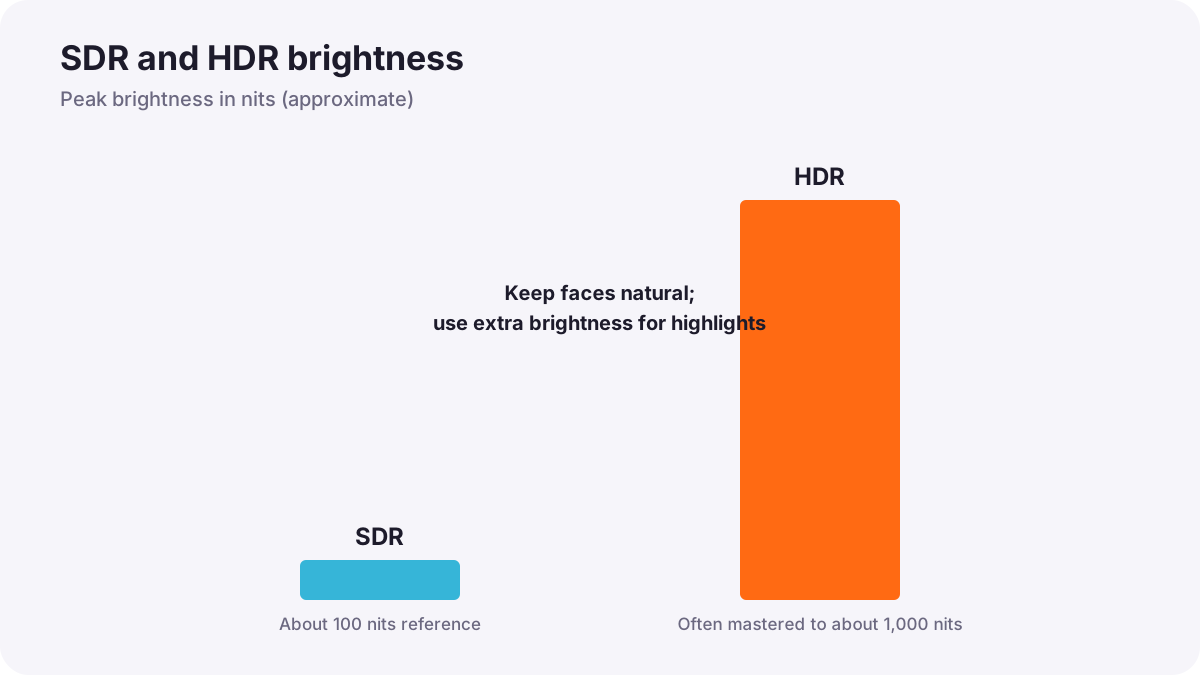
HDR video and the HLG and PQ systems were introduced in exposing log and HDR video, and video color standards in color for video. The key difference for grading is how bright the display can be, measured in nits (candelas per square meter).
| SDR | HDR | |
|---|---|---|
| Typical reference brightness | About 100 nits for reference white | Highlights mastered commonly up to about 1,000 nits, sometimes more |
| Color range | Rec.709 | Rec.2020 container, often graded within P3 |
| Brightness coding | Standard gamma | PQ or HLG |
| Needed to judge it | A calibrated SDR monitor | A true HDR monitor |
Why you need an HDR monitor
An ordinary screen cannot show HDR brightness or colors. If you grade HDR on an SDR screen, you are guessing. Many computer screens advertised as HDR cannot reach high brightness across the screen. For serious HDR work, colorists use professional HDR reference monitors; for learning, a good HDR television or high-end laptop screen can help, but check results carefully.
Grading HDR well
- Keep faces natural: skin should sit at a comfortable brightness, often not much brighter than in SDR; HDR's extra range is mainly for highlights.
- Use highlights with purpose: sun glints, lamps, reflections and fire can shine; large bright areas can be tiring.
- Protect shadows: HDR shows shadow detail clearly, including noise.
- Watch for flicker and harsh contrast in fast cuts between very bright and dark shots.
- Work in a color-managed workflow so SDR and HDR come from one grade, as in working with log footage and color-space transforms.
Tip:A common beginner mistake is making everything brighter in HDR. Good HDR usually looks like a natural image with more sparkle and depth, not a brighter one.
The SDR trim pass
Most projects are graded once and then adjusted for the other format. If the HDR version is graded first, the software converts it to SDR with tone mapping, and the colorist makes a trim pass: small adjustments so the SDR version looks as close to the intended look as possible. Some HDR formats, such as Dolby Vision, store these trims as metadata so screens can adapt the picture automatically.
- Check highlights: make sure bright areas still have detail in SDR.
- Check faces and saturation: they should look natural in both.
- Compare side by side on calibrated SDR and HDR monitors.
Choosing what to deliver
- SDR only: still the safest choice for most small projects and many platforms.
- HLG: simpler HDR for broadcast and quick delivery; can look acceptable on many SDR screens.
- PQ-based HDR (HDR10, Dolby Vision): for streaming and premium delivery, with careful mastering and trims.
- Both: many professional projects deliver HDR and SDR from one color-managed grade.
Check each platform's or client's current delivery specification before choosing, as in exporting and delivery settings.
Common mistakes
- Grading HDR on an SDR screen: the result is unpredictable.
- Making faces too bright in HDR: uncomfortable and unnatural.
- Large, very bright areas everywhere: tiring to watch.
- No SDR check: most viewers see a poor version.
- Delivering HDR without metadata or the right tags: the video displays incorrectly.
How colorists deliver HDR and SDR
Professional colorists grade HDR on calibrated HDR reference monitors in a color-managed workflow, keep faces natural and use the extra range for highlights and depth, then create SDR trims and check both versions side by side. They follow each distributor's HDR specification and deliver correctly tagged files and metadata.
Practical examples
A sunset in HDR
- Situation
- Your HDR sunset looks blinding and the faces too bright.
- What to do
- You bring faces back to a natural level and let only the sun and its reflections reach high brightness.
- Why it works
- HDR's extra range is best used for highlights, not everything.
- Result
- A natural sunset with a glowing sun.
A client wants both versions
- Situation
- A streaming client asks for HDR and SDR deliveries.
- What to do
- You grade in a color-managed workflow, master HDR first, then make an SDR trim pass and compare both.
- Why it works
- One grade with a careful trim gives consistent versions.
- Result
- Both versions look right on their screens.
Key points
- HDR shows much brighter highlights than SDR, measured in nits; SDR reference white is about 100 nits.
- HDR must be graded on a true HDR monitor.
- Keep faces natural in HDR and use extra brightness for highlights and depth.
- An SDR trim pass adapts the HDR grade for ordinary screens.
- Choose SDR, HLG or PQ-based HDR according to the delivery specification, often delivering both.
Frequently asked questions
What are nits?
Can I grade HDR on a normal monitor?
What is a trim pass?
Should beginners deliver HDR?
Conclusion
HDR grading uses extra brightness and color for depth and sparkle, while faces stay natural; an SDR trim pass keeps the ordinary version strong. Deliver what the specification asks for, checked on the right screens. Next, you will learn the complete grading workflow and export.
Finished reading? Track your progress through Color grading.