A colorist may grade hundreds or thousands of shots for one film. Without a clear workflow, it is easy to lose track of versions, grade the wrong edit, or export files that look different from the grade. This lesson brings the whole course together into a professional workflow: preparing the timeline, moving projects between editing and grading software, organizing grades, saving reference stills and versions, running review sessions, exporting the graded film correctly, and archiving everything.
Where grading fits
Grading happens after picture lock, as in reviewing and finishing an edit, and follows the order of work from color correction and color grading in video: convert, correct, match, secondaries, look, check and deliver. The workflow below organizes that work so it is safe and repeatable.
Preparing the timeline
- Lock the picture and get approval.
- Simplify the timeline: remove unused clips, flatten unnecessary tracks and label effects.
- Reconnect to full-quality media if the edit used proxies, as in proxies and video delivery formats.
- Remove temporary color the editor added, or keep it only as reference.
- Set up color management for each camera, as in working with log footage and color-space transforms.
Round-trip workflows
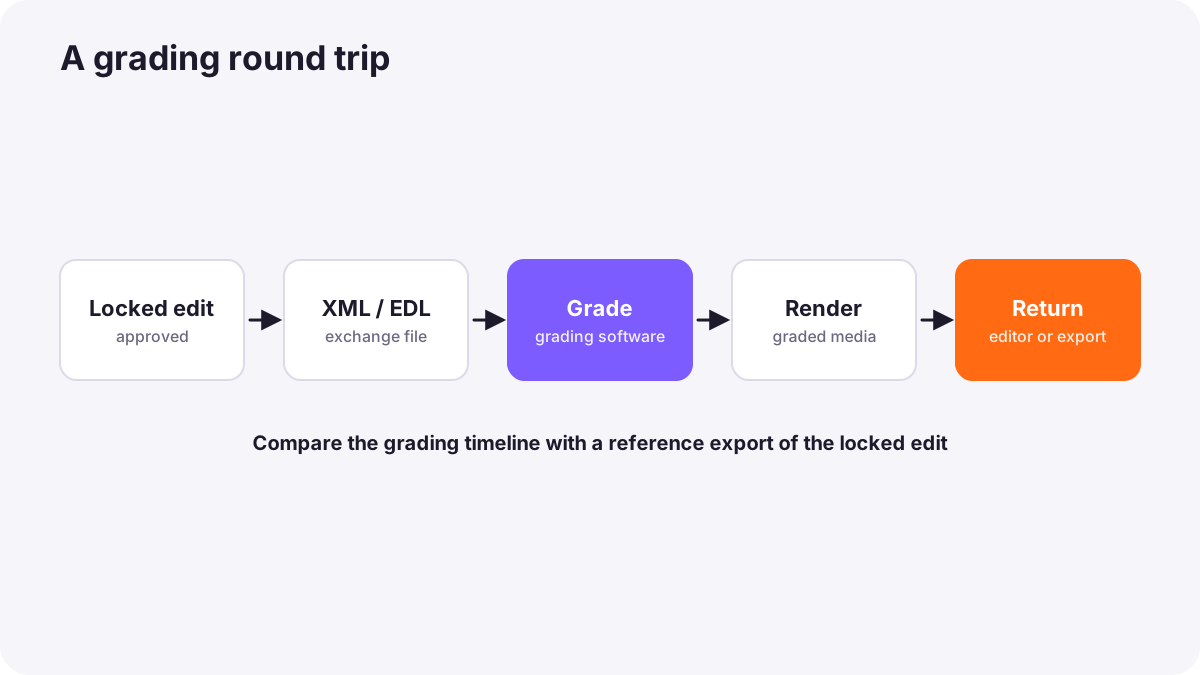
Some editors grade in the same software they edit in. Others send the timeline to dedicated grading software and back, a process called a round trip.
- Export the edit as a project exchange file, such as XML or EDL, that lists every clip and cut.
- Import into grading software and check that every shot matches a reference video of the edit.
- Grade and render either individual graded clips or a finished file.
- Return graded clips to the editor, or deliver the finished video directly.
Warning:Always compare the grading timeline against a reference export of the locked edit, frame by frame, before grading. Missing or shifted shots are easy to fix now and expensive later.
Organizing the grade
- Consistent structure: use the same order of adjustments on every shot, such as Input, Exposure, Balance, Conversion, Secondary, Look.
- Label layers or nodes so anyone can understand the grade.
- Group shots by scene or camera and apply shared corrections to the group.
- Apply the look on a timeline-level layer so it can be adjusted everywhere at once, as in creating a cinematic look.
Stills, versions and reviews
- Save stills of hero shots in a gallery to compare scenes and keep the look consistent, as in matching shots and cameras.
- Keep versions: save grade versions so you can return to earlier choices.
- Review sessions: show the grade to the director or client on a calibrated display, collect notes and make changes.
- Review copies: send compressed files with timecode for remote notes, and explain that home screens differ.
Exporting the graded film
- Master first: export a high-quality master in a professional codec, as in exporting and delivery settings.
- Correct color tags: make sure files are tagged for the right standard, such as Rec.709 for SDR, so players display them correctly.
- HDR and SDR versions: export each with the right settings and metadata, as in grading for HDR and SDR delivery.
- Check the export on scopes and on several screens, comparing with the grade.
Archiving the grade
Archive the grading project, color management settings, LUTs, stills and exports with the rest of the project, as in archiving and long-term preservation. Future versions, such as a new HDR release or a shorter edit, become much easier.
Common mistakes
- Grading before picture lock: work is lost when the edit changes.
- Not checking the round trip: shots are missing or out of place.
- Messy, unlabeled grades: changes become slow and risky.
- No saved versions: earlier choices cannot be restored.
- Wrong color tags on export: videos look washed out or too contrasty in players.
- Not archiving LUTs and settings: the grade cannot be recreated.
How post houses manage grading
Post-production houses run grading as a careful pipeline: locked and conformed timelines checked against references, organized and labeled grades, galleries of stills, supervised review sessions on calibrated displays, masters and deliverables for every standard, and complete archives. This discipline lets colorists focus on creativity while delivering reliably.
Practical examples
A missing shot
- Situation
- After importing the edit into grading software, one shot is different from the locked edit.
- What to do
- You compare against the reference export, find the mismatch and relink the correct clip.
- Why it works
- Checking the round trip catches errors before grading.
- Result
- The graded film matches the approved edit exactly.
A washed-out upload
- Situation
- Your graded export looks lighter and flatter in some players.
- What to do
- You check the export's color tags and re-export with the correct Rec.709 settings.
- Why it works
- Wrong tags make players display the image incorrectly.
- Result
- The video looks as graded in common players.
Key points
- Grade after picture lock with a simplified, full-quality, color-managed timeline.
- Round trips move edits between software with XML or EDL; always check against a reference.
- Organize grades with a consistent, labeled structure and a timeline-level look.
- Save stills and versions, and review on calibrated displays.
- Export masters and correctly tagged deliverables, check them, and archive everything.
Frequently asked questions
What is a round trip in color grading?
Why should I compare against a reference export?
Why does my graded video look different after export?
What should I archive after grading?
Conclusion
A reliable grading workflow prepares the timeline, checks round trips, organizes grades, uses stills and versions, manages reviews, exports correctly and archives everything. You have now completed the color grading for video course.
Finished reading? Track your progress through Color grading.