Your phone is also a capable photo studio. Free and paid editing apps offer the same core tools as desktop software: crop, exposure, curves, color, masks and healing. This lesson gives you a simple, reliable editing order for phone photos, explains what to look for in an editing app, and shows how to avoid the over-edited look that makes so many phone photos look cheap.
A reliable phone editing order
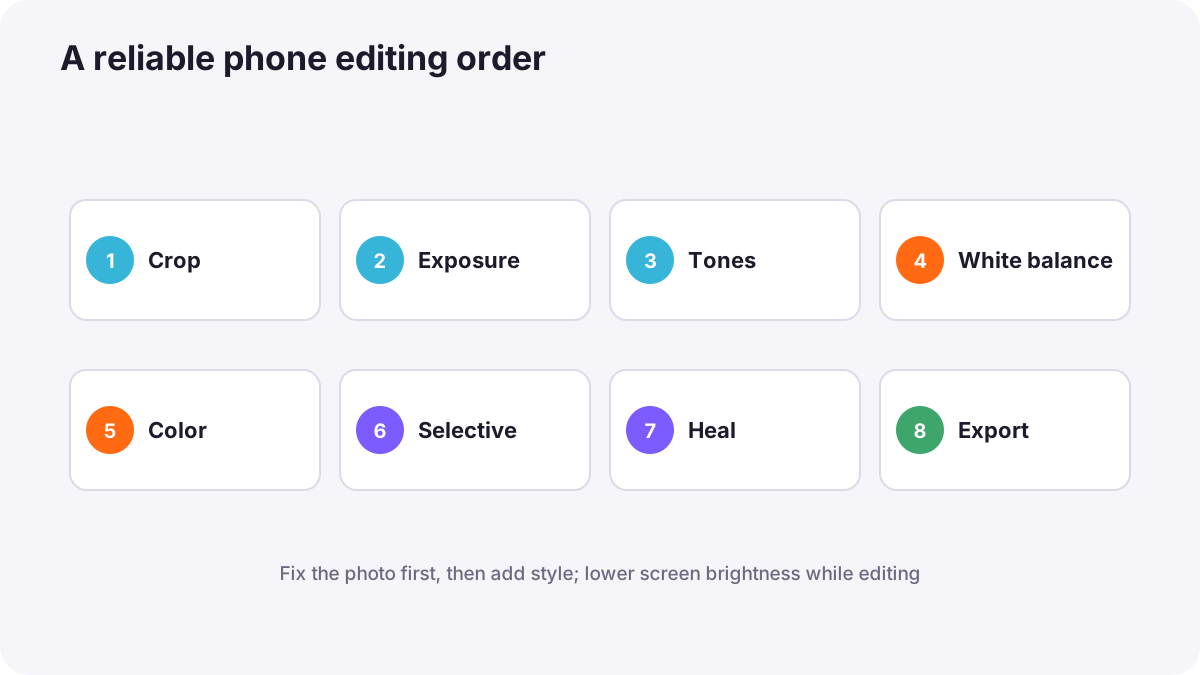
- Crop and straighten for composition and level horizons.
- Set exposure and contrast so the photo is neither too dark nor too bright.
- Recover highlights and lift shadows gently.
- Correct white balance so whites look white and skin looks natural.
- Adjust color with vibrance or individual colors, carefully.
- Make selective edits: brighten a face, darken a distracting corner.
- Remove small distractions with a healing tool.
- Check sharpness and export.
Remember:This order follows the same logic as desktop editing in cropping, straightening and basic corrections and RAW development workflow.
What to look for in an editing app
- Non-destructive editing, so you can undo or change edits later.
- RAW support if you shoot RAW.
- Curves and selective (masking) tools.
- Healing or object removal.
- Presets you can create and copy for a consistent look across a set.
- Export controls: size, quality and format.
Tip:Many phones' built-in editors cover basic edits well. Free apps from major software companies add RAW, curves and masks. Choose one app and learn it well instead of collecting many.
Presets and consistency
A preset is a saved group of settings you can apply with one tap. Presets help a series of photos look like they belong together, which matters for social media profiles and client work. Treat a preset as a starting point: adjust exposure and white balance for each photo afterward. A consistent style comes from repeated choices, as explained in developing a recognizable visual style.
Knowing when to stop
- Check skin: it should not be orange, gray or plastic-smooth.
- Check skies and edges: no halos or banding.
- Compare before and after, then reduce strong sliders a little.
- View on another screen at normal brightness.
Tip:Phone screens are bright and colorful, so edits that look perfect on your phone can look too strong elsewhere. Lower your screen brightness a little when editing.
Common mistakes
- Heavy filters on everything: unnatural color and lost detail.
- Too much clarity and sharpening: crunchy, harsh images.
- Over-smoothing faces: plastic skin.
- Editing at full screen brightness: photos look dark on other devices.
- Exporting tiny or heavily compressed files: lost quality, as in export settings for web and social media.
How professionals edit on phones
Professionals who edit on phones work in a consistent order, use their own presets for speed, edit RAW files for important images, and check results on another screen before delivering. They aim for photos that look naturally excellent, not obviously edited.
Practical examples
A dark indoor portrait
- Situation
- A photo of a friend by a window is too dark and slightly blue.
- What to do
- You raise exposure, lift shadows, warm the white balance slightly and brighten the face with a selective tool.
- Why it works
- Correcting exposure and white balance first, then the face, follows a reliable order.
- Result
- A warm, natural portrait.
A travel series
- Situation
- Ten travel photos look mismatched on your profile.
- What to do
- You create a gentle preset from your best photo and apply it to all ten, then adjust each one.
- Why it works
- A shared starting point creates consistency.
- Result
- A set that looks like one story.
Key points
- Edit in order: crop, exposure, highlights and shadows, white balance, color, selective edits, healing, export.
- Choose one editing app with non-destructive editing, RAW, curves, masks and healing.
- Use presets as starting points for consistency.
- Stop before skin, skies and edges look unnatural; lower screen brightness when editing.
Frequently asked questions
What is the best app to edit photos on a phone?
Should I use filters?
Can I edit RAW photos on a phone?
Why do my edits look different on a computer?
Conclusion
Editing on your phone can be as careful as editing on a computer. Next, you will put your skills to work with product photos that help people and businesses sell online.
Finished reading? Track your progress through Smartphone photo and film.