Many successful creators edit everything on their phones. Mobile editing apps now offer multiple video and audio tracks, color tools, captions and high-quality export. This lesson gives you a complete phone editing workflow, from choosing an app and organizing clips to building the story, cleaning sound, adding captions and exporting correctly for each platform.
Choosing a phone editing app
- Multiple video and audio tracks for B-roll, music and sound effects.
- Precise trimming frame by frame.
- Audio controls: volume per clip, fades and noise reduction.
- Text and automatic captions.
- Color adjustments or LUT support.
- Export without a watermark at your project's resolution and frame rate.
Remember:These are the same building blocks as desktop editing software, explained in editing software and the timeline.
A phone editing workflow
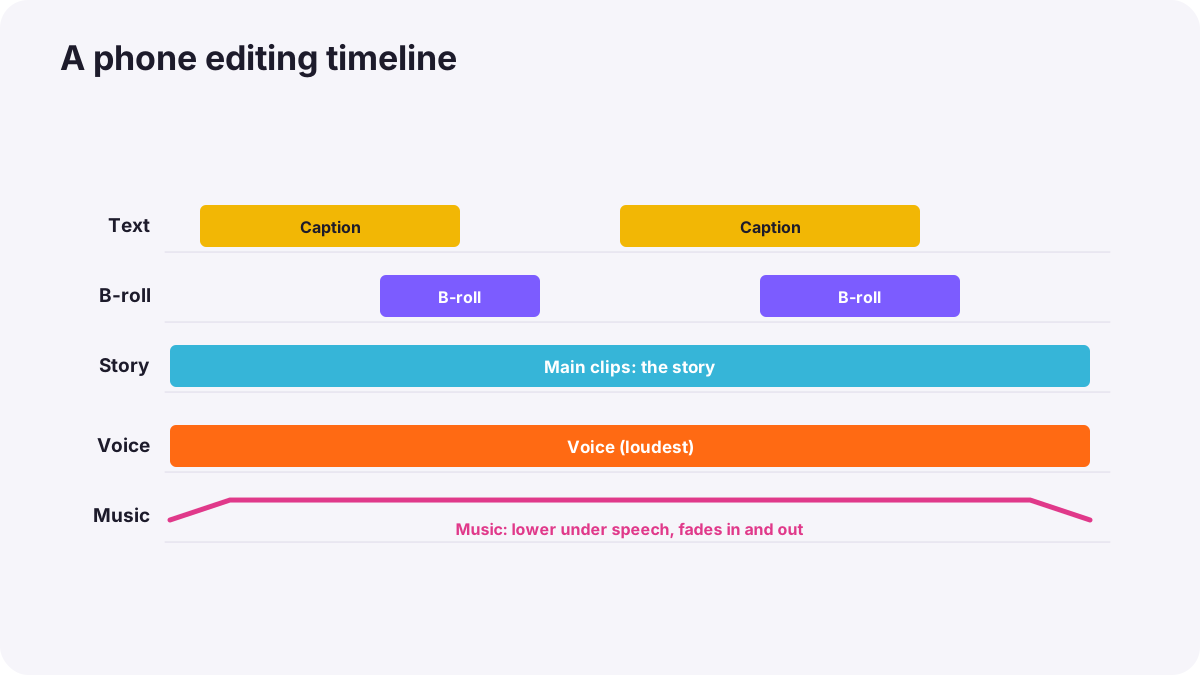
- Collect and name your clips in one album or folder.
- Choose your best takes and delete obvious failures.
- Build the story first: place the main clips or interview on the timeline, as in building the rough cut.
- Trim tightly: remove pauses and repeated parts.
- Add B-roll to cover cuts and show what people describe, as in B-roll and cutaways.
- Balance sound: voice clear, music lower under speech.
- Add captions and titles checked for spelling.
- Color: match brightness and white balance between clips.
- Export and watch it once from start to finish before publishing.
Music and sound on a phone
Use music you have the right to use: the app's licensed library, royalty-free tracks or music you have licensed, as explained in music licensing for video. Lower music under speech, fade it at the start and end, and cut on the beat for energy.
Tip:Keep the voice clear above everything else. If viewers have to turn the volume up and down, they leave.
Export settings
| Setting | Choose |
|---|---|
| Resolution | Same as your footage, often 1080p or 4K |
| Frame rate | Same as your footage |
| Quality or bitrate | High |
| Shape | Match the platform, e.g. 9:16 for vertical video |
Remember:Full export settings are explained in exporting and delivery settings, and vertical video in short-form vertical video for social media.
Common mistakes
- Long openings: viewers leave before the point.
- Music too loud under speech: words are lost.
- Unchecked automatic captions: embarrassing errors.
- Exporting at a different frame rate: jerky motion.
- Using popular songs without permission: muted or removed videos.
How professionals edit on phones
Mobile editors build the story before decoration, trim hard, keep sound clear, check captions word by word and export at the footage's settings. For bigger projects they move phone footage to a computer while keeping the same workflow.
Practical examples
A one-minute recipe video
- Situation
- Your recipe clips run to eight minutes.
- What to do
- You keep only the key steps, trim each to a few seconds, add captions and a short title, and cut to the music's beat.
- Why it works
- Tight trimming and captions suit short social videos.
- Result
- A clear, fast one-minute video.
A noisy interview clip
- Situation
- Background hum distracts from the voice.
- What to do
- You apply gentle noise reduction and lower the music bed.
- Why it works
- Small audio fixes keep speech clear.
- Result
- An easy-to-understand interview.
Key points
- Choose an app with multiple tracks, precise trimming, audio controls, captions, color and clean export.
- Build the story first, trim tightly, then add B-roll, sound, captions and color.
- Use only licensed music and keep voices clear.
- Export at the footage's resolution and frame rate, in the platform's shape.
Frequently asked questions
Can I edit professional videos on a phone?
How do I add captions on my phone?
Which music can I use in phone videos?
What export settings should I use?
Conclusion
A clear workflow turns phone clips into finished videos. Next, you will bring everything together and make a short film with a phone.
Finished reading? Track your progress through Smartphone photo and film.