Phone video can look like a home movie or like a short film, and settings decide a large part of the difference. This lesson explains which resolution and frame rate to choose, what HDR and log video are on phones, why you should lock exposure and focus, when a pro video app helps, and how to manage the large files that good settings create.
Resolution and frame rate
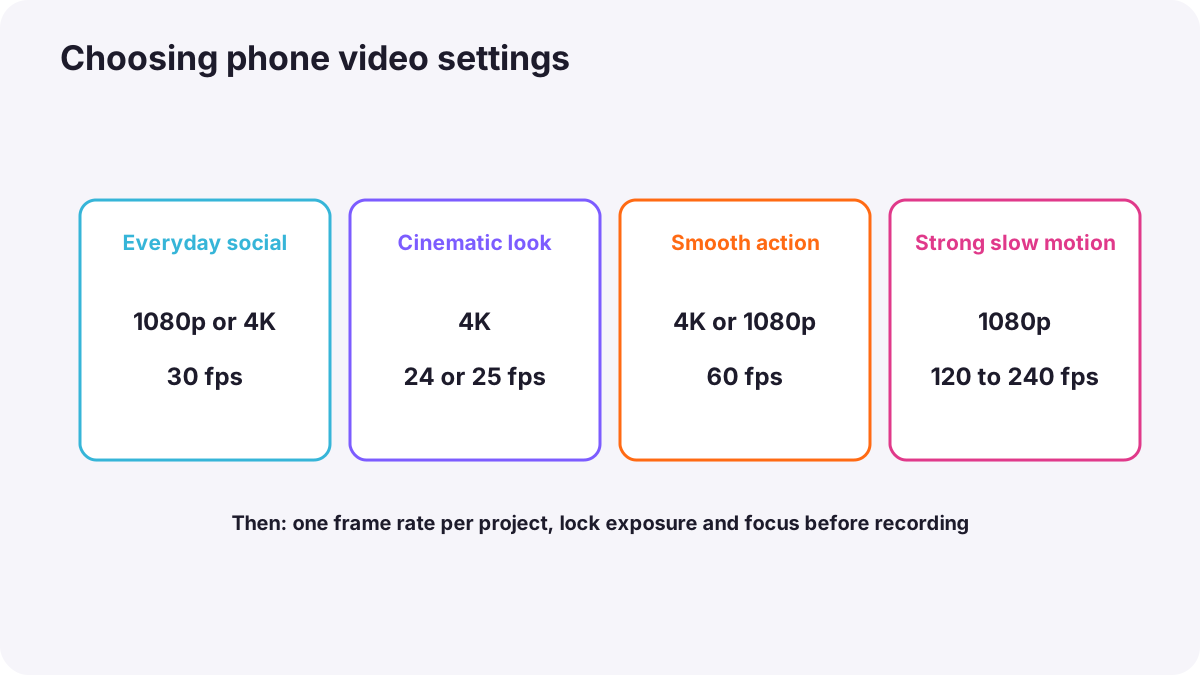
| Goal | Resolution | Frame rate |
|---|---|---|
| Everyday social video | 1080p or 4K | 30 fps |
| Cinematic look | 4K | 24 or 25 fps |
| Smooth action, or slow motion later | 4K or 1080p | 60 fps |
| Strong slow motion | 1080p | 120 or 240 fps |
Tip:Frame rates and slow motion are explained in frame rates and slow motion. Choose one frame rate for a whole project so clips cut together smoothly.
Lock exposure and focus
Automatic video exposure and focus can drift while you record: the picture brightens and darkens, or focus jumps to someone walking past. Before pressing record, tap your subject and hold to lock exposure and focus, then adjust brightness. For moving subjects, keep tracking focus on but lock exposure.
Remember:Phones also change shutter speed automatically. In bright light this can make movement look jerky. Pro video modes or apps let you set the shutter near double the frame rate, the 180-degree rule, with an ND filter in sunlight.
HDR and log video on phones
- HDR video records brighter highlights and more color for HDR screens. It looks great on phones but can look washed out in some editing apps and on some platforms. Turn it off if your edits look gray or bright.
- Log video records a flat image that keeps more highlight and shadow detail for grading. It is available on some recent high-end phones, such as Apple Log on iPhone 15 Pro models and later, and Samsung Log on the Galaxy S25 Ultra, and through some pro video apps.
- Log must be graded with a LUT or color transform, as in working with log footage and color-space transforms, and exposed carefully, as in exposing log and HDR video.
Tip:Beginners usually get better results with normal video and good light. Use log when you plan to grade and need maximum control.
Pro video apps
Pro video apps, including free ones from professional camera makers, add manual shutter, ISO, white balance and focus, audio meters, zebras and other tools from video exposure tools. They are worth learning once the built-in app feels limiting.
Storage and files
- 4K and high frame rates create large files; professional codecs such as ProRes use several gigabytes per minute.
- Some phones record directly to an external USB-C drive, useful for long or high-quality recordings.
- Clear space before a shoot and copy footage to two places afterward, as in offloading and backing up video footage.
Common mistakes
- Mixing frame rates in one edit: stuttering motion.
- Recording without locking exposure: flickering brightness.
- Shooting log without grading: gray, flat videos.
- HDR clips that look washed out after upload: use standard video or convert properly.
- Running out of storage mid-shoot: lost moments.
How professionals set up phone video
Mobile filmmakers decide resolution and frame rate for the whole project, lock exposure and white balance, often use a pro video app with audio meters, and record log only when they will grade. They carry storage or an external drive and back up every day.
Practical examples
A cinematic travel video
- Situation
- You want your trip video to feel like a film.
- What to do
- You choose 4K at 24 fps, lock exposure for each shot and avoid HDR because you will edit for normal screens.
- Why it works
- A film frame rate and stable exposure give a cinematic feel.
- Result
- Smooth, consistent footage.
Slow-motion splash
- Situation
- You want a slow-motion water splash for a drink advert.
- What to do
- You record 1080p at 240 fps in bright light.
- Why it works
- High frame rates create smooth slow motion but need plenty of light.
- Result
- A dramatic, clean slow-motion shot.
Key points
- Choose 4K at 24 or 25 fps for a cinematic look, 30 fps for everyday, 60 fps or more for action and slow motion.
- Lock exposure and focus before recording.
- HDR video can look washed out elsewhere; log needs grading and careful exposure.
- Pro video apps add manual controls, meters and exposure tools.
- Plan storage and back up footage daily.
Frequently asked questions
What is the best video setting on a phone?
Should I turn on HDR video?
Can phones shoot log?
Why does my phone video flicker in brightness?
Conclusion
The right settings and locked exposure turn phone clips into consistent footage. Next, you will learn to keep phone video steady and move the camera with purpose.
Finished reading? Track your progress through Smartphone photo and film.