Most people use their phone camera exactly as it came out of the box. A few minutes in the settings, and learning two simple gestures, can improve every photo you take. This lesson shows which settings to change first, how to control focus and exposure with a tap, what pro (manual) mode lets you control, and which file format to choose: HEIF, JPEG or RAW.
Settings to change first
| Setting | Suggested choice | Why |
|---|---|---|
| Grid | On | Helps straight horizons and the rule of thirds |
| Level | On, if available | Keeps the phone straight |
| Location tags | Your choice; off for privacy | Photos can reveal where you live |
| Mirror front camera | Your choice | Selfies match what you saw, or not |
| High-efficiency format | On, unless you need JPEG | Smaller files, similar quality |
| RAW / ProRAW / Expert RAW | Available as a toggle | For photos you will edit |
| Video settings | See lesson 8 | Resolution and frame rate |
Tip:Grid lines support the composition ideas in rule of thirds.
Tap to focus, then lock
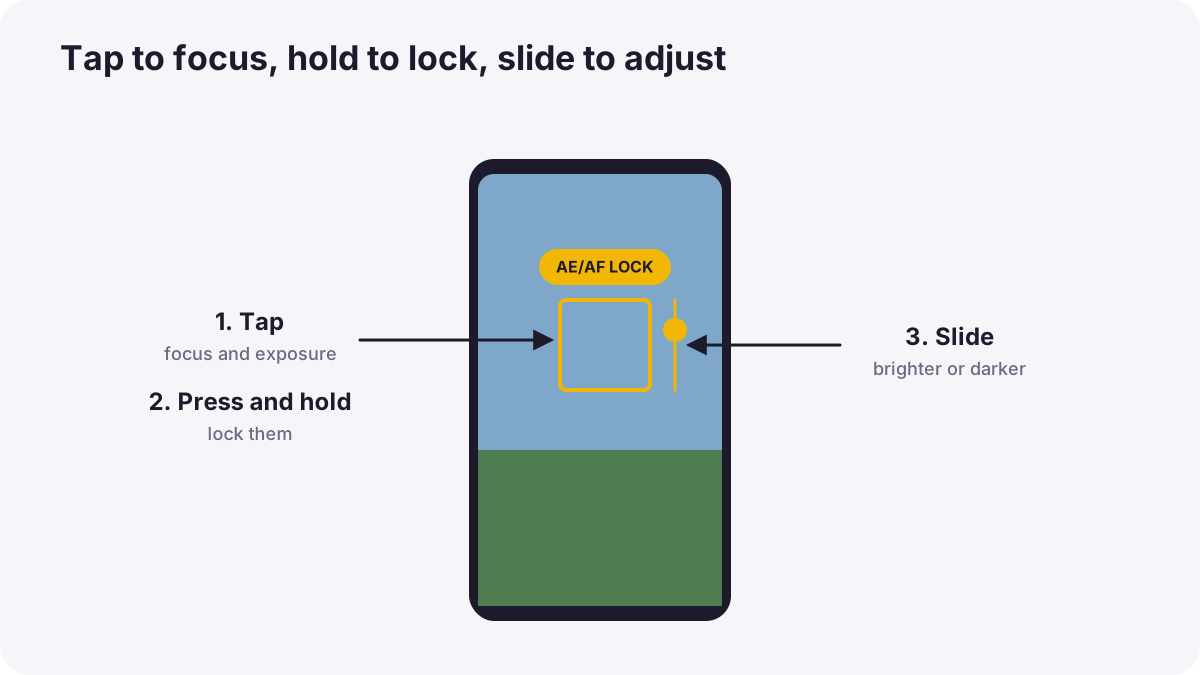
- Tap the subject on the screen to set focus and exposure there.
- Press and hold to lock focus and exposure (often shown as AE/AF Lock), so they do not change when you reframe.
- Slide the brightness control up or down to make the photo brighter or darker.
Remember:Locking works like exposure lock on a camera, explained in camera metering. Lower brightness for bright skies and sunsets; raise it for snow or dark faces.
What pro mode controls
Many phones offer a pro or manual mode. Some do not, but free and paid camera apps add it. Pro mode gives you the same controls as a camera:
- ISO: keep it low for clean images, as in ISO.
- Shutter speed: slow for blur and night scenes on a support, fast for action, as in shutter speed.
- White balance: set a fixed value so colors stay consistent, as in white balance.
- Manual focus: with focus peaking on some phones.
- Exposure compensation and a live histogram on some phones.
Remember:Phone apertures are usually fixed, so you control brightness with ISO and shutter speed instead.
HEIF, JPEG or RAW?
| Format | Strength | Best for |
|---|---|---|
| HEIF / HEIC | Small files, good quality | Everyday photos |
| JPEG | Opens everywhere | Sharing with any device or website |
| RAW (DNG) | Most editing room, less baked-in processing | Important photos you will edit |
| Computational RAW (e.g. ProRAW, Expert RAW) | RAW flexibility plus multi-frame processing | Editing with the phone's processing benefits |
Tip:RAW files are much larger and need editing, as explained in RAW versus JPEG. Use RAW for photos that matter, and HEIF or JPEG for everyday moments.
Common mistakes
- Never tapping to focus: the phone picks the wrong subject.
- Recomposing without locking: exposure jumps.
- Shooting everything in RAW: storage fills quickly.
- Leaving location on when sharing publicly: a privacy risk, especially for young creators.
- High ISO in pro mode in bright light: unnecessary noise.
How professionals set up phones
Phone professionals turn on the grid and level, use exposure lock constantly, switch to RAW for important images, and keep a pro camera app ready for situations where the built-in app makes too many decisions.
Practical examples
A bright sunset
- Situation
- Your sunset photo turns out washed out and white.
- What to do
- You tap the sky, lock exposure and slide brightness down.
- Why it works
- Exposing for the bright sky keeps its colors.
- Result
- Rich sunset colors with silhouetted foreground.
A photo to edit later
- Situation
- You want to edit a landscape carefully at home.
- What to do
- You turn on RAW for this shot.
- Why it works
- RAW keeps more information for editing.
- Result
- Room to recover sky and shadow detail.
Key points
- Turn on the grid and level; think about location privacy.
- Tap to focus and expose, press and hold to lock, slide to adjust brightness.
- Pro mode controls ISO, shutter speed, white balance and focus; phone apertures are usually fixed.
- HEIF for everyday, JPEG for compatibility, RAW for photos you will edit.
Frequently asked questions
Does my phone have a manual mode?
Should I shoot RAW on my phone?
What is AE/AF lock?
Why can't I change aperture on my phone?
Conclusion
A few settings and two gestures, tap and hold, give you real control over your phone camera. Next, you will learn to choose the right phone lens and accessories.
Finished reading? Track your progress through Smartphone photo and film.