Text on screen tells viewers things pictures and voices cannot: the name of the person speaking, the place and date, key facts, the title of the film, or a call to action at the end. Good titles and graphics look clean, are easy to read in a second and match the style of the video. Bad ones are too small, too fast, badly placed or covered by the platform's buttons. This lesson explains the main kinds of on-screen text, how to make it readable, where to place it, how long to show it, and how to keep a consistent style.
Kinds of on-screen text
| Type | What it shows | Typical use |
|---|---|---|
| Title card | The name of the film or section | Openings and chapters |
| Lower third | A person's name and role in the lower part of the frame | Interviews and documentaries |
| Location and date | Where and when | Documentaries, travel, events |
| Key facts and numbers | Statistics or important points | Explainers, business videos |
| Captions | Spoken words as text | Accessibility and sound-off viewing, as in publishing video online |
| End card | Credits, logo, website or call to action | Endings |
Readable text
- Choose clear fonts: simple sans-serif fonts are easiest to read on screens.
- Make it big enough: text must be readable on a phone, not just a large monitor.
- Use strong contrast: white or light text on darker areas, or a subtle shadow or background box.
- Keep it short: a few words per line, two lines at most for lower thirds.
- Limit fonts: one or two fonts per video.
Warning:Fonts are licensed software. Check that the fonts you use are licensed for video and commercial work.
Where to place text
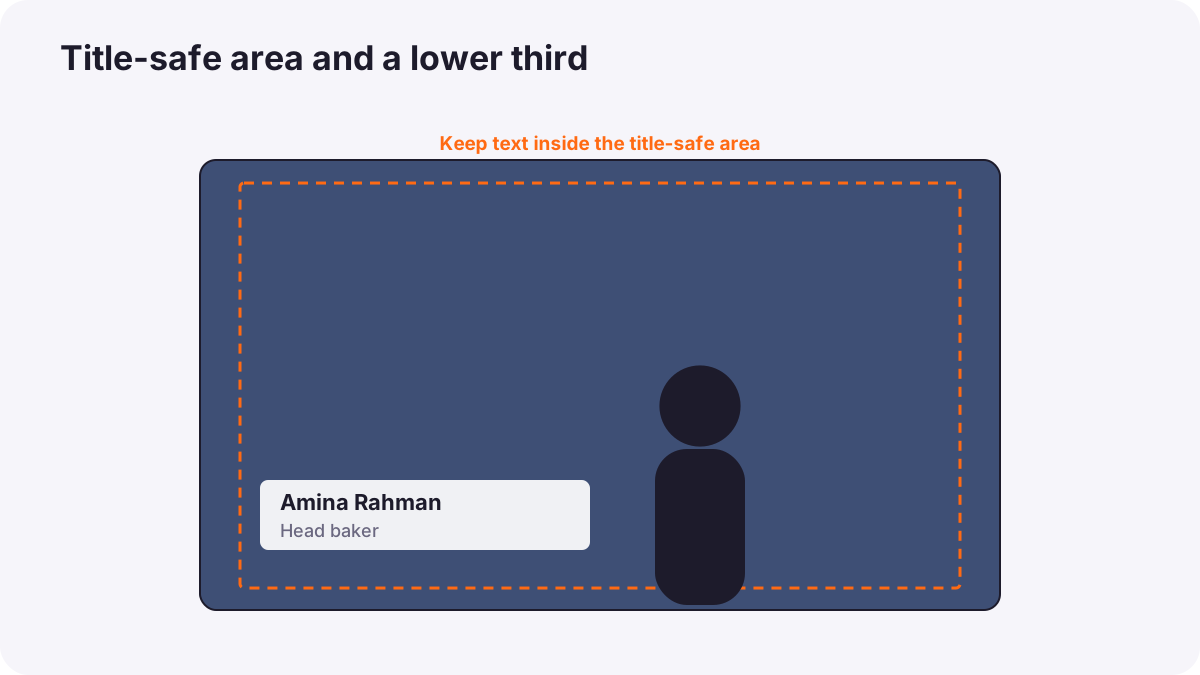
- Title-safe area: keep text away from the frame edges, which may be cropped on some screens.
- Platform safe zones: on vertical videos, avoid the areas covered by app buttons and captions, as in social media image preparation.
- Avoid faces and key action: never cover eyes or the important part of the shot.
- Consistent position: lower thirds always in the same place and style.
- Use composition: place text in negative space, as in simplicity, negative space and visual weight.
Timing text
Viewers need time to read. A common rule is to leave text on screen long enough to read it twice at a relaxed pace. Short names may need about 3 to 4 seconds; longer facts need more.
- Introduce lower thirds a moment after a person starts speaking, once viewers see their face.
- Avoid text during big visual moments that need the viewer's full attention.
- Never put two pieces of text competing at the same time.
Simple motion graphics
Motion graphics are moving text and shapes. Simple fades, gentle slides and subtle growth look professional; spinning, bouncing and complex effects quickly look dated. Match the speed of animation to the pace of the edit, as in pacing and rhythm. Animated text that follows the rhythm of spoken words, called kinetic typography, is popular in social videos but should stay readable.
Brand and style
Companies often have brand guidelines with fonts, colors and logo rules, as introduced in personal brand and professional identity. Use them consistently, and create templates for lower thirds and titles so every video in a series looks the same.
Common mistakes
- Text too small to read on phones.
- Text disappearing before viewers can read it.
- Too many fonts and colors: the video looks messy.
- Text over busy backgrounds: unreadable.
- Spelling mistakes in names and titles: embarrassing and unprofessional.
- Text under app buttons: hidden on social platforms.
How editors and designers handle titles
Professional editors and motion designers use consistent templates, clear licensed fonts, strong contrast and safe areas, time text so it can be read comfortably, keep animation subtle, and check every name and word for spelling. They test titles on small screens and in the platform's interface before delivery.
Practical examples
A documentary interview
- Situation
- Viewers do not know who the speaker is.
- What to do
- You add a clean lower third with her name and role two seconds after she appears, for four seconds.
- Why it works
- Viewers need context, and time to read it.
- Result
- Viewers know who she is without distraction.
Unreadable social text
- Situation
- Your vertical video's text is hidden under app buttons.
- What to do
- You move text into the upper middle area inside the safe zone and make it larger.
- Why it works
- Safe zones keep text visible on social platforms.
- Result
- Clear, readable text on every phone.
Key points
- Common text includes title cards, lower thirds, locations, facts, captions and end cards.
- Use clear, licensed fonts, large sizes, strong contrast and few words.
- Keep text inside safe areas and away from faces and key action.
- Show text long enough to read twice; time lower thirds after the person appears.
- Keep motion subtle and style consistent, and check spelling carefully.
Frequently asked questions
What is a lower third?
How long should text stay on screen?
What font should I use for video?
What is the title-safe area?
Conclusion
Good titles and graphics are readable, well placed, well timed, simply animated and consistent with the brand. Next, you will learn how to edit versions of a video for different platforms.
Finished reading? Track your progress through Video editing.