An hour spent organizing footage can save a day of searching later. Before the creative work of editing begins, good editors set up the project correctly, sort every clip into clear folders, sync sound, watch and label the footage, and pull out the best moments. This is the unglamorous part of editing, but it makes everything that follows faster and calmer. This lesson explains how to set up a project, organize bins, sync sound, log footage with markers and notes, and create selects and string-outs.
Why organization matters
Even a short video can have hundreds of clips from several cameras and recorders. Without organization, editors waste time searching, use the wrong takes or lose files. Organizing on the computer starts with the folder structure created when offloading, as in offloading and backing up video footage. Editing software basics were explained in editing software and the timeline.
Setting up the project
- Create the project inside the project folder on a fast drive.
- Set the timeline frame rate and resolution to match the main camera.
- Set where cache and render files are saved, ideally on a fast drive.
- Import footage without moving it from its organized folders.
- Create proxies if the footage is heavy, as in proxies and video delivery formats.
Organizing bins
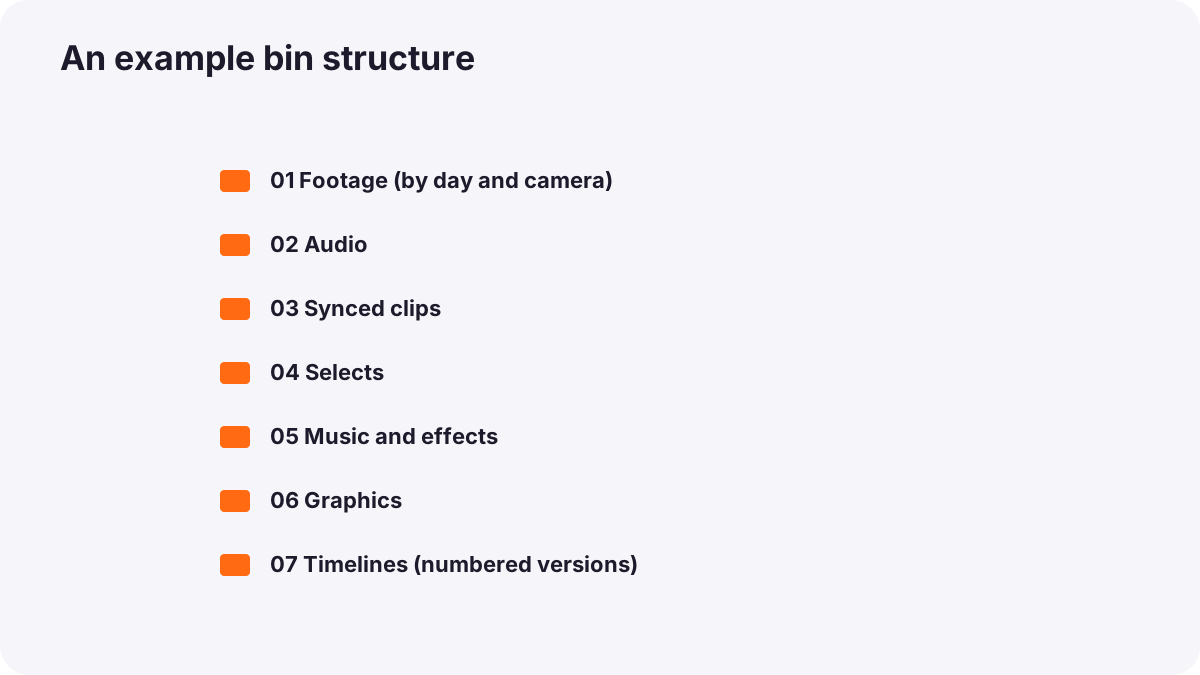
| Bin | Contents |
|---|---|
| 01 Footage (by day and camera) | Original clips |
| 02 Audio | Recorder files, room tone, wild sound |
| 03 Synced clips | Picture with separate sound joined |
| 04 Selects | The best moments |
| 05 Music and effects | Licensed music and sound effects |
| 06 Graphics | Logos, titles, lower thirds |
| 07 Timelines | Versions of the edit, named and dated |
Tip:Name timeline versions clearly, such as BrandFilm_RoughCut_v02_2026-10-12, and never overwrite older versions. You may want to go back.
Syncing sound
If sound was recorded separately, sync it before editing so every clip has its best audio attached. Editing software can sync automatically by timecode or by matching the camera's scratch audio waveform; otherwise use the slate clap, as explained in dual-system sound and syncing. Check a few clips by watching lips.
Logging footage
Logging means watching the footage and adding information so you can find moments quickly later.
- Markers: small flags on clips at important moments, such as a great line or a reaction.
- Notes and keywords: short descriptions such as 'wide garden', 'laugh', 'best answer about history'.
- Ratings or favorites: mark the best takes, like rating photos in culling and selecting the strongest images.
- Transcripts: for interviews, automatic transcripts let you search spoken words, as in AI in video creation and editing.
Selects and string-outs
- Selects: a timeline or bin that contains only the best moments from all the footage.
- String-out: a long timeline of all the usable takes of a scene or topic placed one after another, so you can compare them quickly.
Remember:Building selects is often the most valuable hour of an edit. It forces you to watch everything once and decide what is worth using.
Saving and versions
- Turn on autosave and check where autosaves are stored.
- Save new versions at important stages, such as rough cut and fine cut.
- Back up project files daily with the footage backups.
- Keep media in one place: moving files breaks links; use the software's media management tools if you must move them.
Common mistakes
- Starting to edit before watching the footage: the best moments are missed.
- Wrong timeline settings: frame rate problems later.
- Unsynced sound: time wasted fixing audio clip by clip.
- One timeline overwritten again and again: no way back to earlier versions.
- Moving media files after importing: missing media and broken links.
How editing teams organize
On larger projects, assistant editors import, sync, organize and log all footage before the editor begins. They follow strict naming and bin structures, create selects and string-outs, transcribe interviews, and manage project backups. Solo editors adopt the same habits in a simpler form, because organization saves more time than any shortcut.
Practical examples
A documentary with 20 hours of footage
- Situation
- You must find the best five minutes of interviews.
- What to do
- You transcribe every interview, mark strong quotes and build a selects timeline.
- Why it works
- Searchable transcripts and selects make the best moments easy to find.
- Result
- A clear story structure in a fraction of the time.
A lost edit
- Situation
- A client prefers last week's version, but you overwrote it.
- What to do
- From now on, you save a new numbered timeline version at each stage.
- Why it works
- Versions let you return to earlier ideas.
- Result
- You can always restore any earlier cut.
Key points
- Organize before editing: project settings, bins, synced sound, logging and selects.
- Match timeline settings to the main camera and import without moving files.
- Use clear bins and numbered, dated timeline versions.
- Log with markers, notes, ratings and transcripts; build selects and string-outs.
- Autosave, save versions, back up project files and keep media in one place.
Frequently asked questions
How should I organize footage before editing?
What is a selects reel?
What is a string-out?
Why does my project show missing media?
Conclusion
Careful organization, with correct settings, clear bins, synced sound, logged footage and selects, turns a pile of clips into material ready for editing. Next, you will learn how to build the rough cut.
Finished reading? Track your progress through Video editing.