Every video editing program, from simple phone apps to the software used for feature films, is built around the same idea: a timeline where clips are arranged from left to right in time, with layers of video and audio stacked on top of each other. Once you understand the timeline and a handful of basic tools, you can move between programs easily. This lesson explains how non-linear editing software works, the main parts of the screen, how tracks work, and the essential editing tools and shortcuts.
Non-linear editing
Modern editing software is called a non-linear editor (NLE). Non-linear means you can work on any part of the video in any order, move clips freely and undo changes, without damaging the original files. Editing is non-destructive, like non-destructive photo editing in non-destructive editing principles: the software only stores instructions about which parts of each file to show.
Remember:Popular editing programs range from free phone apps to professional desktop software used in television and cinema. Their names and features change, but the concepts in this lesson apply to all of them.
The main parts of the screen
| Area | What it does |
|---|---|
| Media browser or bins | Folders that hold your imported clips, audio and graphics |
| Source monitor (viewer) | Plays a clip before it is placed in the edit, so you can choose the part you want |
| Program monitor (canvas) | Plays the edited timeline |
| Timeline | Where clips are arranged in time from left to right |
| Inspector or effects panel | Settings for the selected clip, such as size, color or audio level |
| Audio meters | Show sound levels, as in recording settings |
How the timeline works
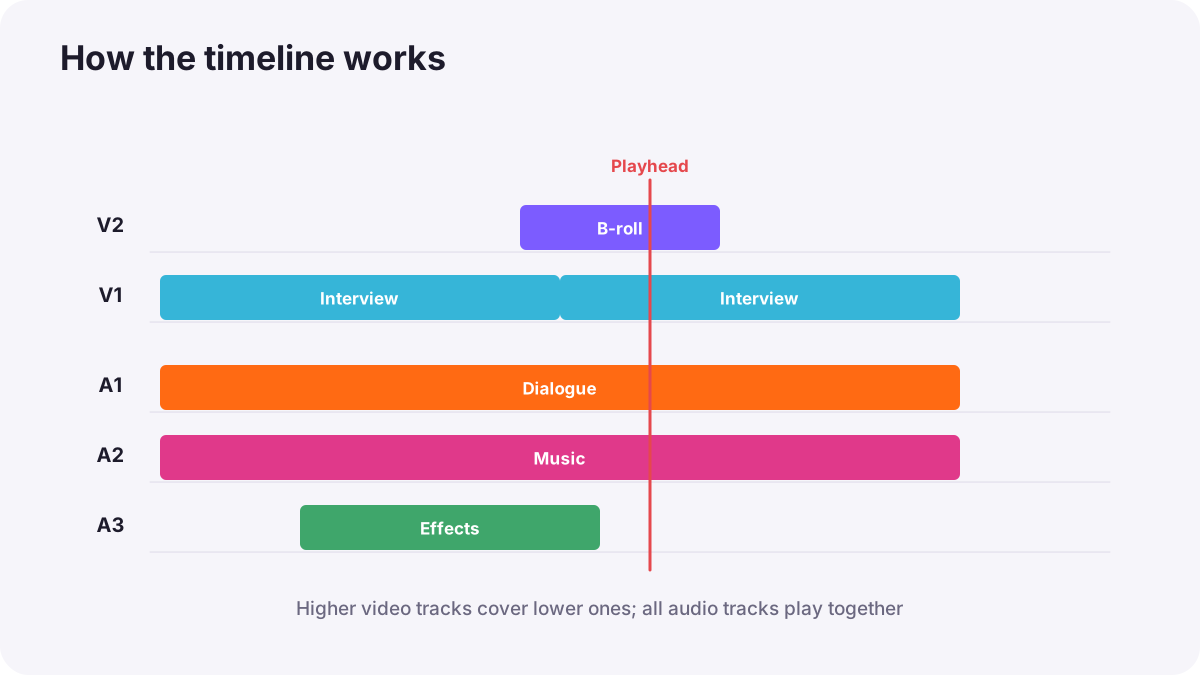
- Left to right is time: the playhead shows the current moment.
- Video tracks (V1, V2, V3): higher tracks appear on top, so a clip on V2 covers V1. Titles and B-roll often sit on upper tracks.
- Audio tracks (A1, A2, A3): all audio tracks play together; dialogue, music and effects usually have their own tracks, as in basic audio editing and mixing.
- Clips are references: trimming a clip on the timeline does not change the original file.
Tip:Set the timeline (sequence) settings to match your footage: the same frame rate and resolution as your main camera, as in frame rates and slow motion.
Essential editing tools
| Tool or action | What it does |
|---|---|
| In and out points | Mark the start and end of the part of a clip you want |
| Insert edit | Adds a clip and pushes later clips to the right |
| Overwrite edit | Places a clip over whatever is already there |
| Blade (razor) or split | Cuts a clip into two at the playhead |
| Trim | Shortens or lengthens the start or end of a clip |
| Ripple edit | Trims a clip and moves everything after it to close or open the gap |
| Roll edit | Moves a cut point between two clips without changing total length |
| Slip | Changes which part of a clip is used, without moving it on the timeline |
| Slide | Moves a clip along the timeline, adjusting its neighbors |
Keyboard shortcuts
Professional editors work mainly with the keyboard. Many programs use J, K and L to play backward, stop and play forward, pressing J or L more than once to play faster. I and O usually mark in and out points. Learning a few shortcuts saves hours on every project.
Computer and storage
- Fast storage: edit from a fast SSD, not a slow external hard drive.
- Enough memory and graphics power for high-resolution footage.
- Proxies for heavy codecs, as in proxies and video delivery formats.
- Autosave and backups of project files, as in backup, redundancy and data protection.
Common mistakes
- Timeline settings that do not match the footage: stuttering playback or wrong frame rates.
- Using only the mouse: editing is slow.
- Leaving gaps by accident: black flashes appear in the video.
- Overwriting clips by mistake: parts of the edit disappear.
- Editing from slow drives: constant stuttering.
How editors use their software
Professional editors set up projects with matching timeline settings, organize clips in bins, keep video and audio tracks tidy, work mostly with shortcuts, and use ripple, roll, slip and slide edits to refine timing quickly. They keep the software and project files backed up and edit from fast drives or proxies.
Practical examples
Black flashes
- Situation
- Your exported video has brief black frames between clips.
- What to do
- You use the ripple delete tool to close the tiny gaps on the timeline.
- Why it works
- Gaps on the timeline appear as black in the export.
- Result
- Smooth cuts with no flashes.
The wrong part of a clip
- Situation
- A B-roll clip shows the right length but the wrong moment.
- What to do
- You use a slip edit to choose a later part of the same clip.
- Why it works
- Slip changes the content without moving the clip.
- Result
- The right moment without disturbing the edit.
Key points
- Non-linear editors work non-destructively and let you edit any part in any order.
- Bins hold media, the source monitor previews clips, the program monitor plays the edit.
- The timeline runs left to right; higher video tracks appear on top, all audio tracks play together.
- Learn in and out points, insert and overwrite, blade, ripple, roll, slip and slide.
- Match timeline settings to footage, use shortcuts, fast storage and proxies.
Frequently asked questions
What is a timeline in video editing?
What is a non-linear editor?
What is a ripple edit?
What do J, K and L do?
Conclusion
Every editing program shares the same foundations: bins, monitors, a timeline with tracks, and a small set of core tools. Learn them once and you can edit in any software. Next, you will learn how to organize footage and set up a project properly.
Finished reading? Track your progress through Video editing.